HubSpot theme documentation
DeLight
A free HubSpot CMS theme: twelve page and blog templates, eleven system templates, five reusable sections and thirty-nine modules, with the brand set once in theme settings. This guide covers installation, the first page, every template, section and module, the blog, forms, the pre-publish check, updates and support.
- Requirements
- Install the theme
- Your first page
- Theme settings
- The templates
- The sections
- The modules
- Navigation, search and languages
- The blog
- Forms
- Check before publishing
- Update the theme
- Support
- Questions
1. Requirements
A HubSpot account with Content Hub (Starter or above) and permission to install themes and publish website pages. Nothing else: no build step, no external service, no code.
2. Install the theme
- Open the listing on the HubSpot Marketplace, press Install and choose the account.
- In that account, DeLight appears under Settings, Website, Themes and Modules, and in the theme picker when you create a page.
- If you plan to change the theme's code, create a child theme first (Settings, Website, Themes and Modules, Actions, Create child theme). Your changes then survive updates.
Installing from a zip is possible through the Design Manager, but the Marketplace install is the one that receives updates. Use the zip only for a copy you intend to modify.
3. Your first page
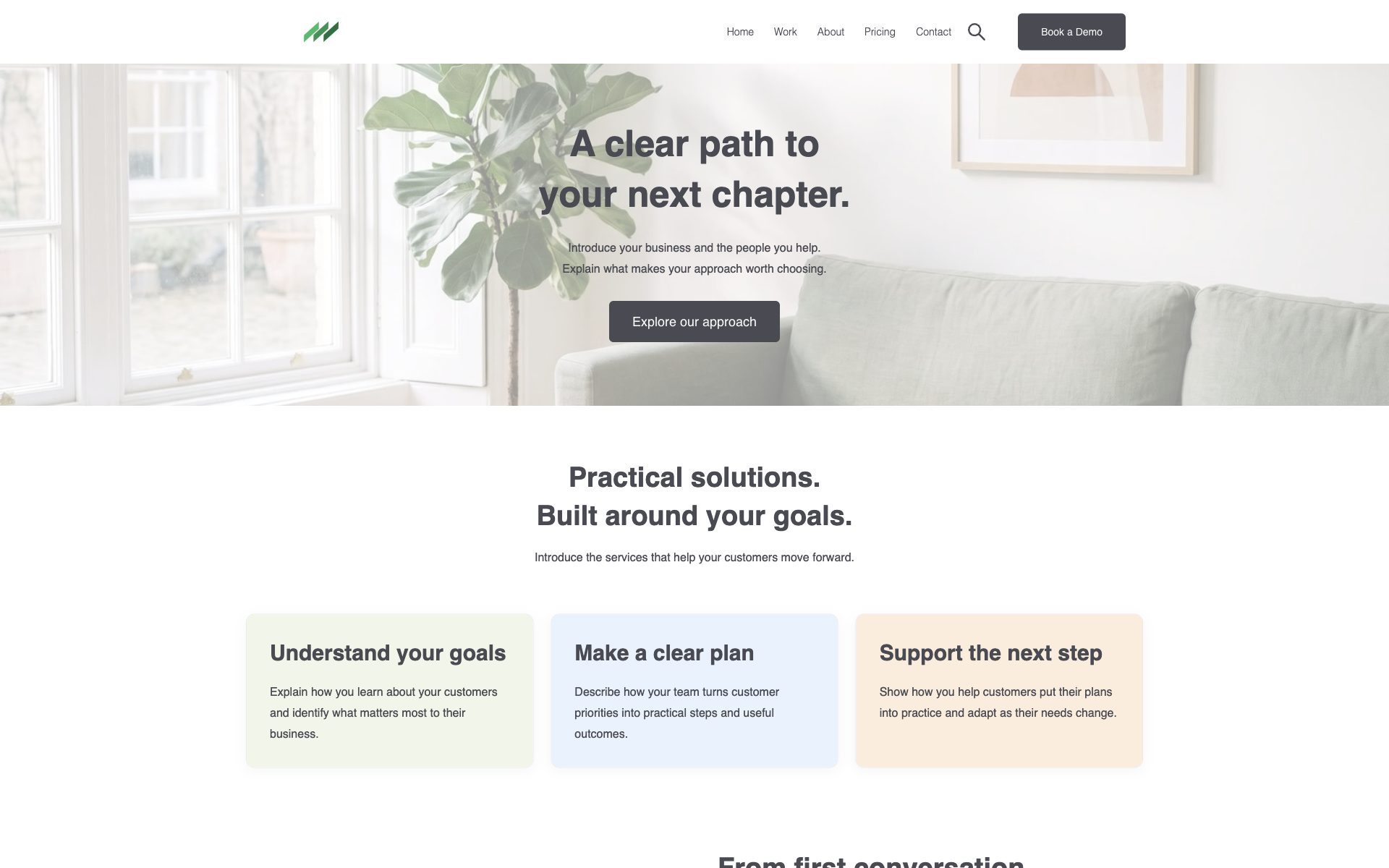
- Create a website page (Marketing, Website, Website Pages, Create) and pick a DeLight template. Home or Home Modern for the front page, Blank Page for anything else.
- Replace the sample content module by module. Every block on every template is a drag and drop module: click it, change its fields, or drag it away. Sample text and images are placeholders, not content.
- Set the page title and description under Settings; DeLight prints both into the page.
- Preview on a phone before you publish. The header collapses to a menu button and every section stacks.
4. Theme settings
Open Edit theme from any page built on DeLight, or from Settings, Website, Themes and Modules. Everything here applies to every page at once.
| Group | What it holds |
|---|---|
| Global | The global colours and fonts every other group inherits from. |
| Website header | The header and footer layout (compact since 2.2, or classic), background, menu link and hover colours, capitalisation of top and child items, child menu colours and border, the menu arrow, the header buttons, and the sticky navigation switch. |
| Typography | Body text and headings one to six, each with its font and weight. The two fields marked newly required by HubSpot mirror the body and h1 fields and can be left matching them. |
| Blog configuration | Hero and post settings, the blog's own body and heading typography, link colour, the tag list, and the typography for phones. |
| Buttons | Font, background, border width and colour, transparent style, corner radius, padding, and the hover state. |
| Forms | Header background and text, label and help text colours, field border and focus border. |
| Tables | Header, body and footer backgrounds and text, and the border. |
| Animations | The image animation, on or off for the whole site. |
| Spacing | Vertical spacing between sections and the maximum content width. |
| Footer | Background and text colour. The footer's content is a global module edited from any page. |
| Search & AI | How the site describes itself to search engines and AI assistants: the organisation type, the site search action, and which breadcrumb trail is published as data. Every page carries a site graph (organisation, website, page, breadcrumb) from these. |
Change the global colours and fonts first, then look at one page before touching the other groups. Most sites need nothing beyond the first group and the header.
5. The templates
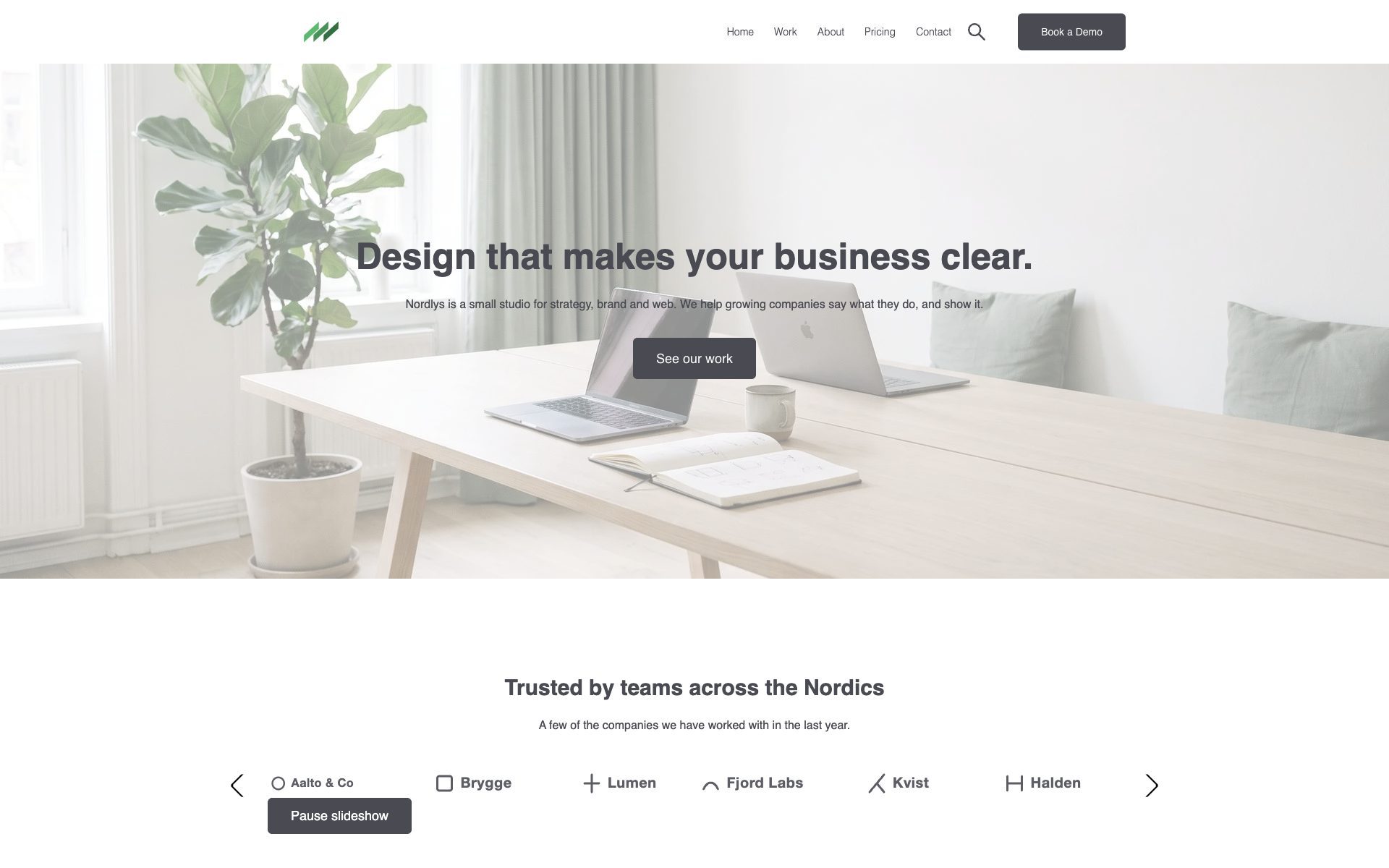
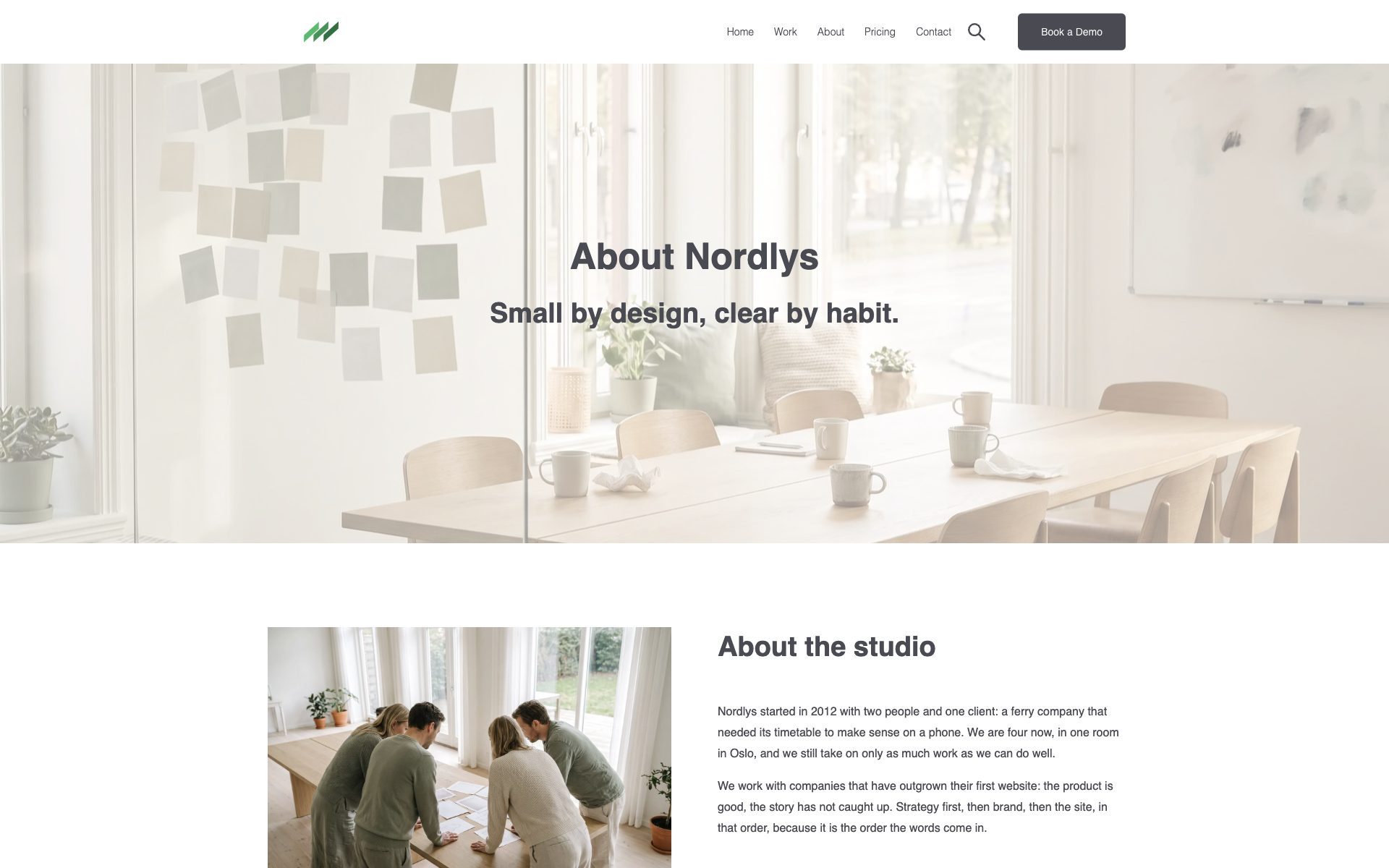
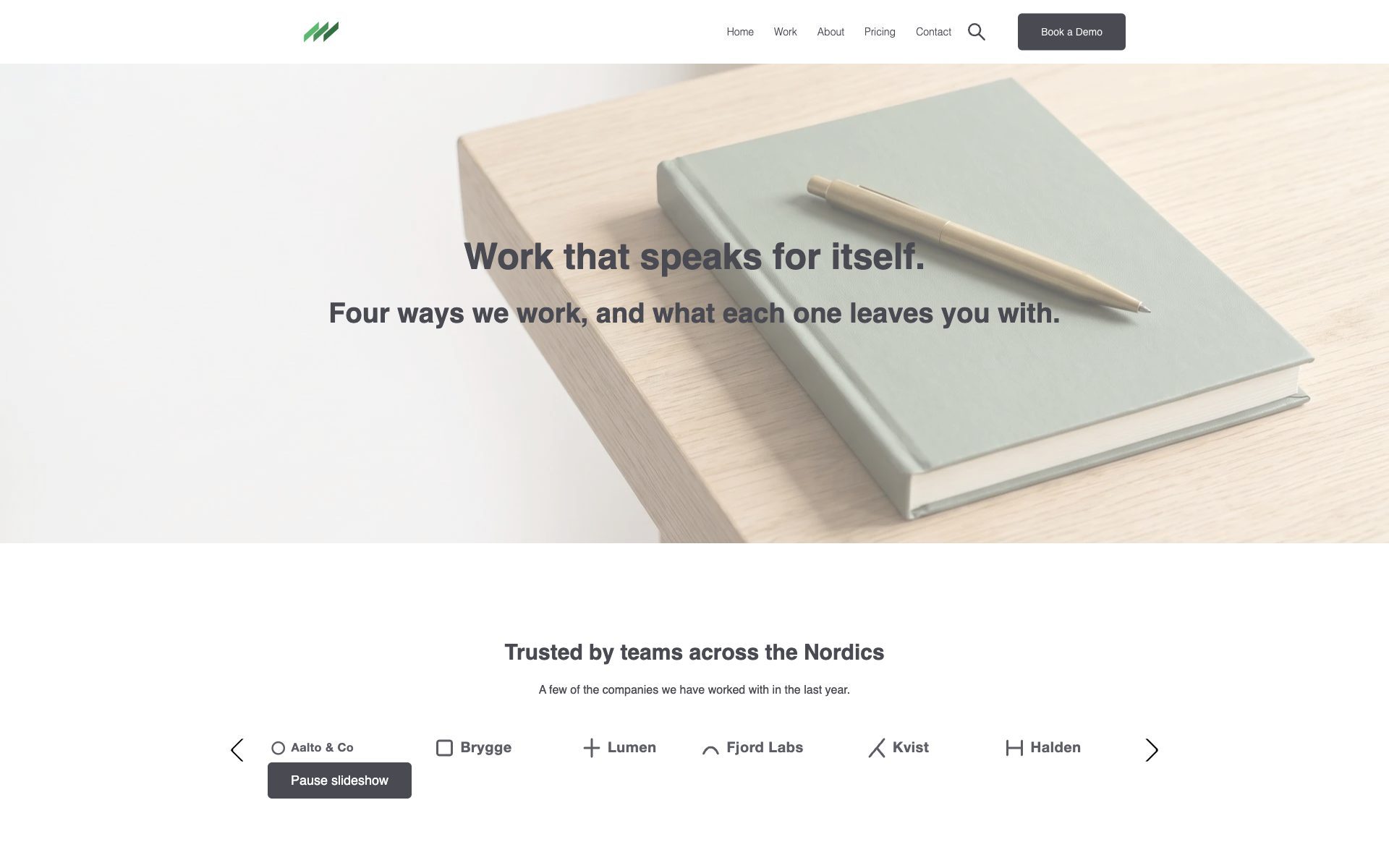
Twelve page and blog templates. Each is a starting composition; every block on it can be replaced.
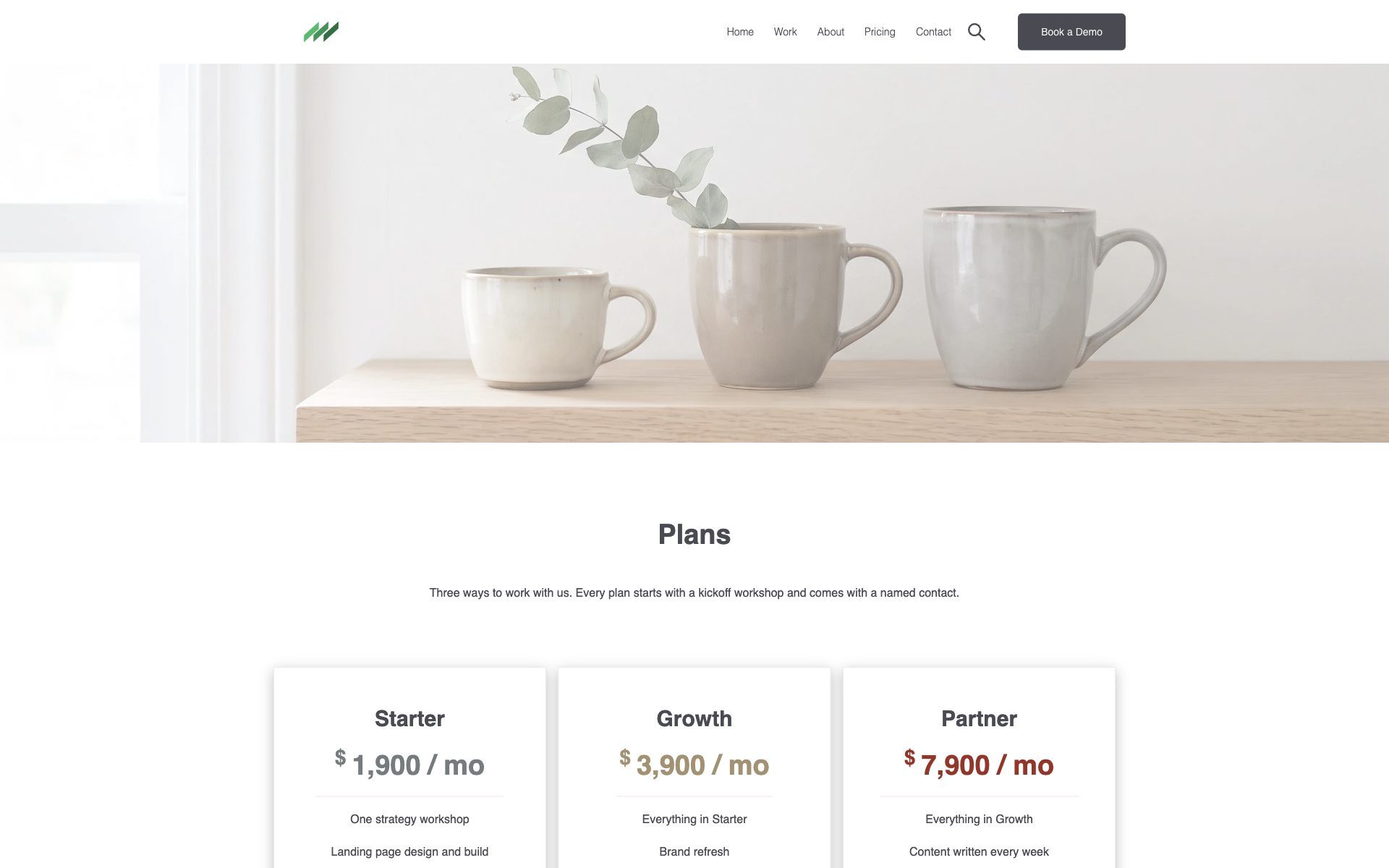
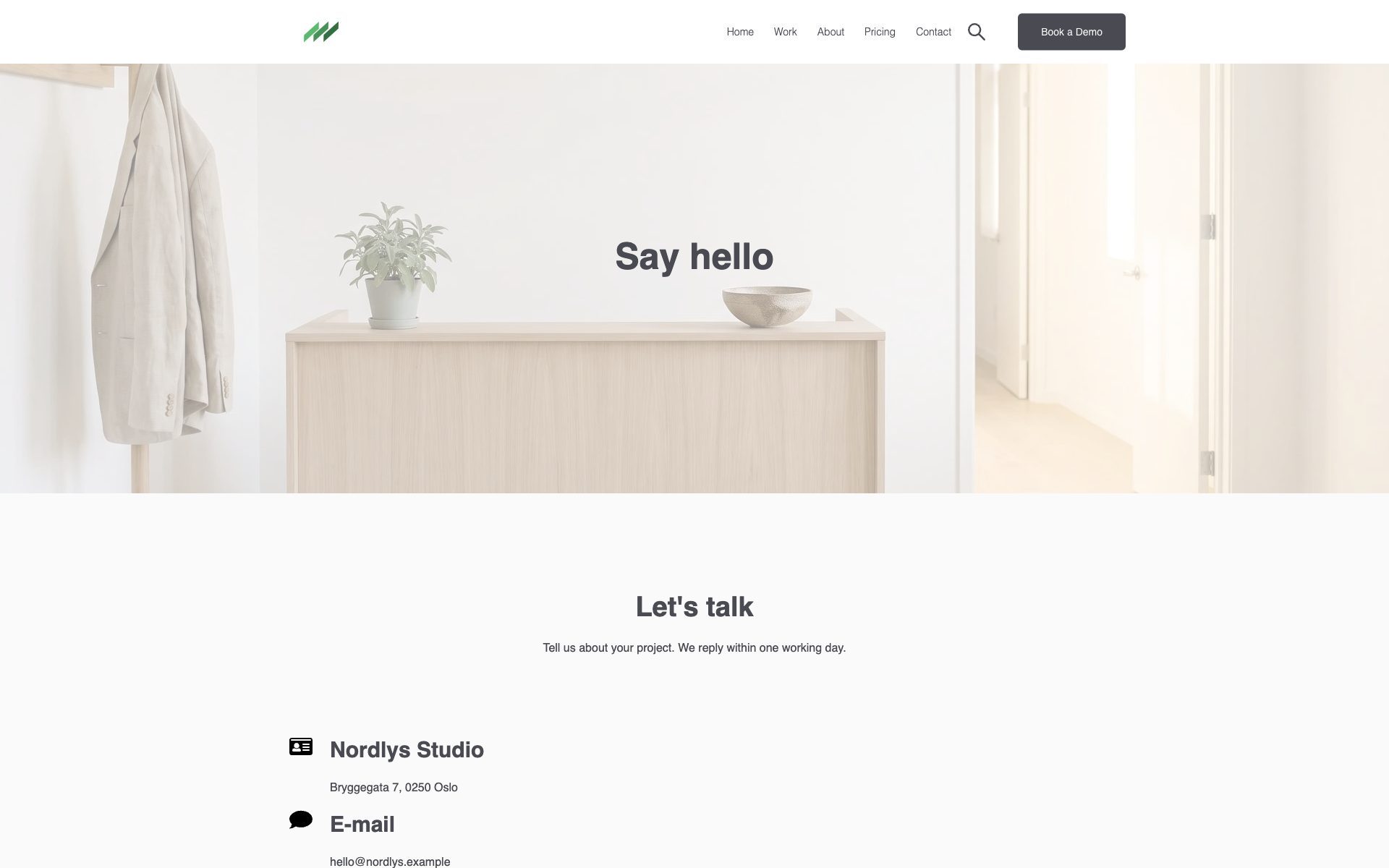
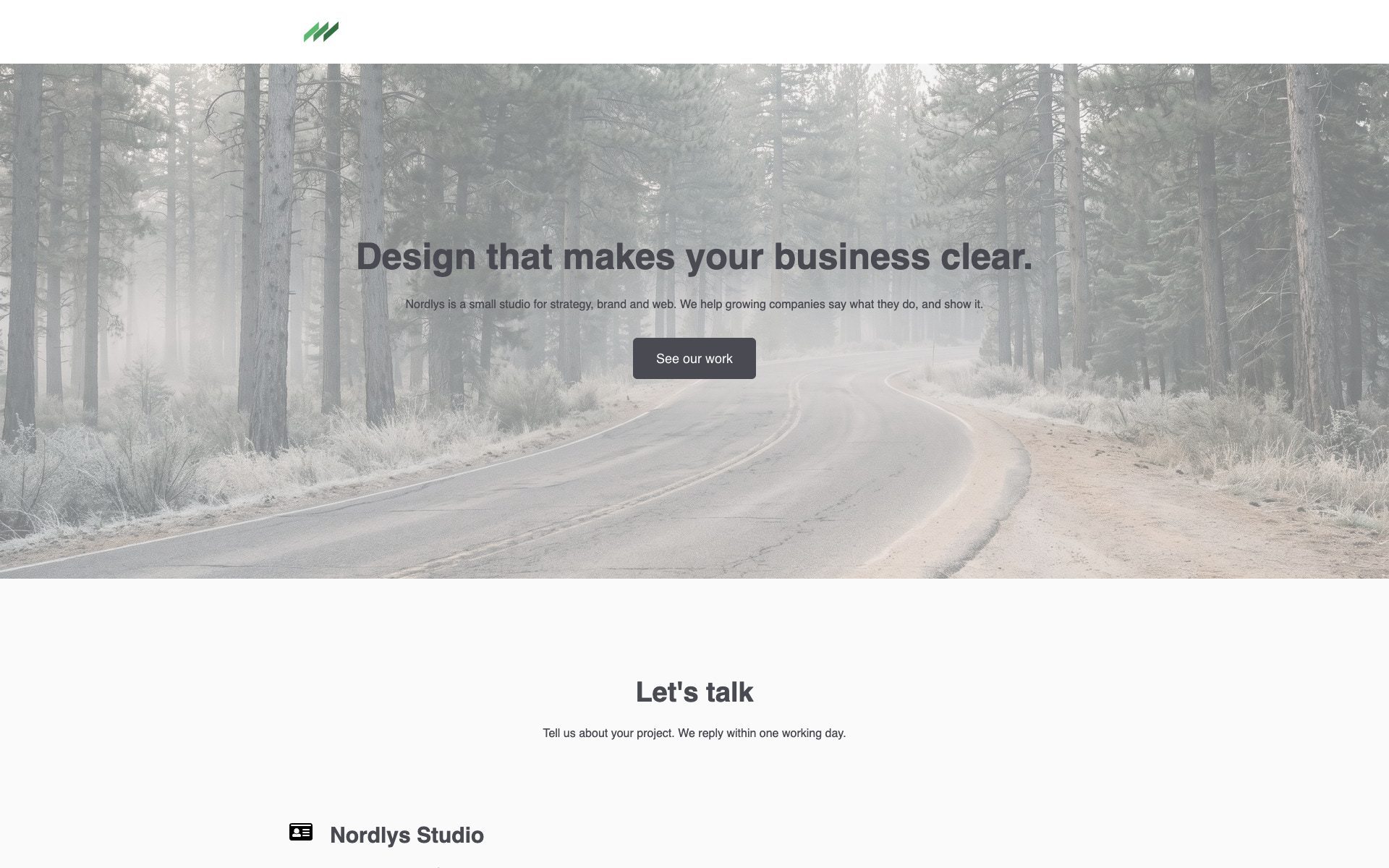
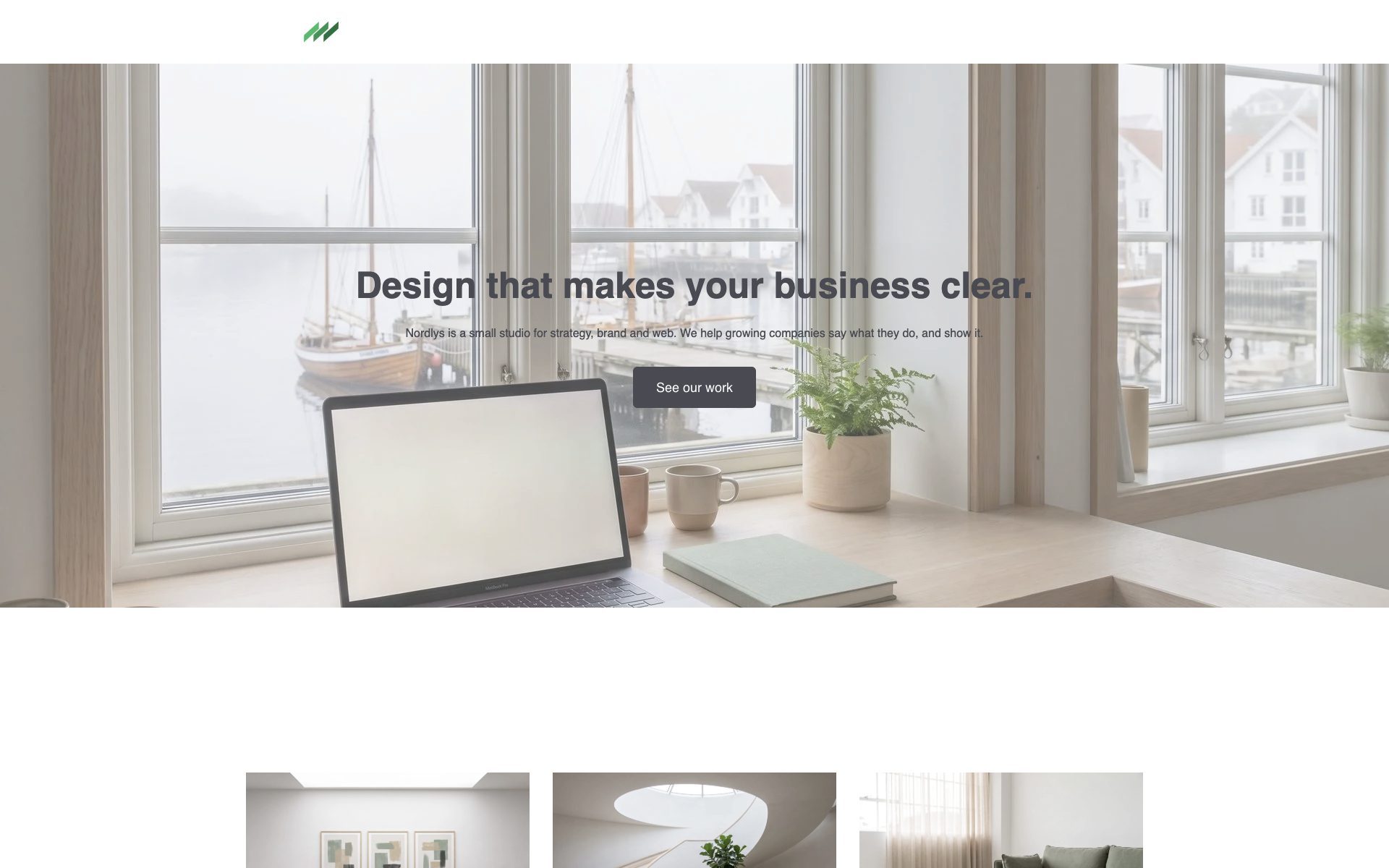
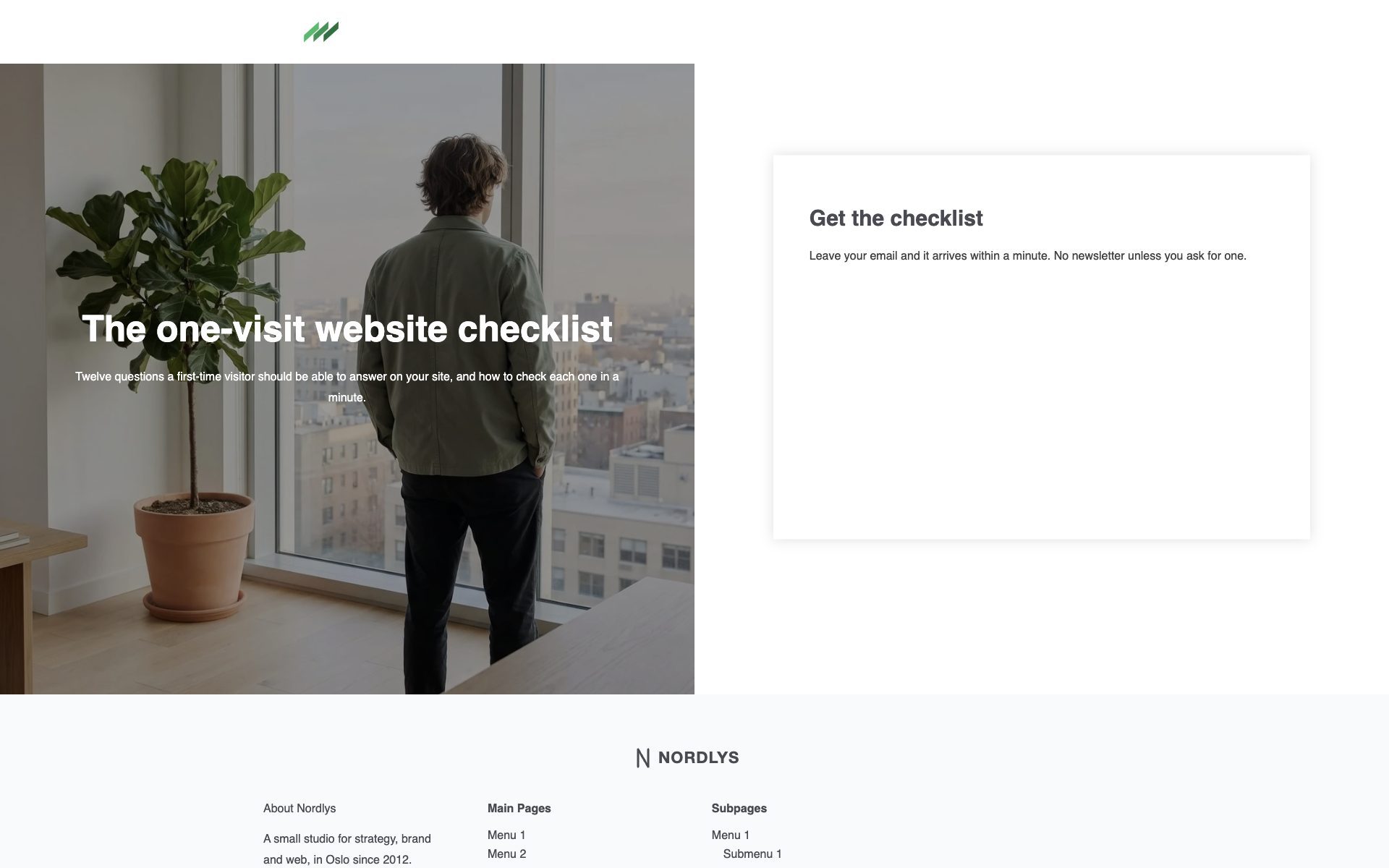
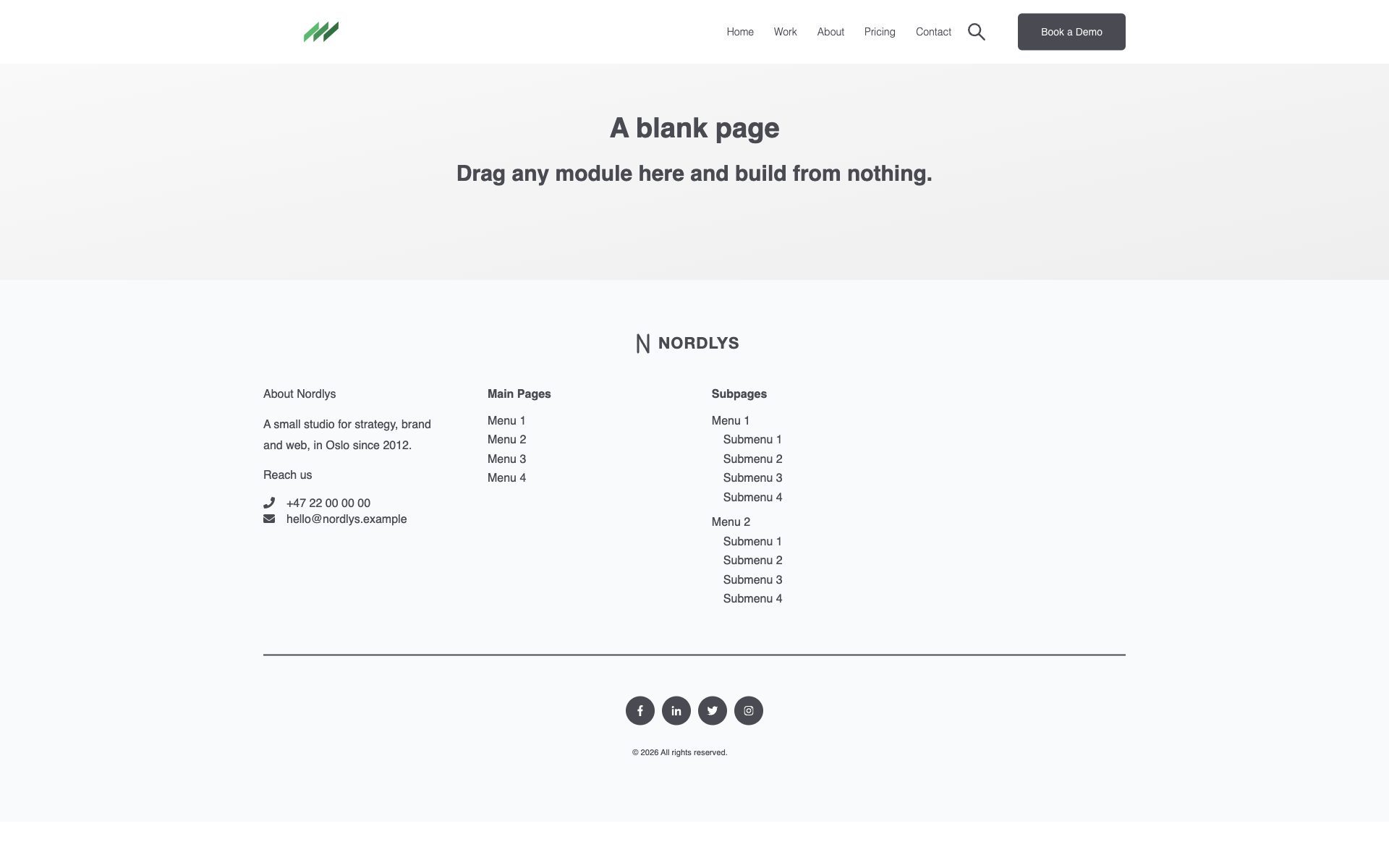
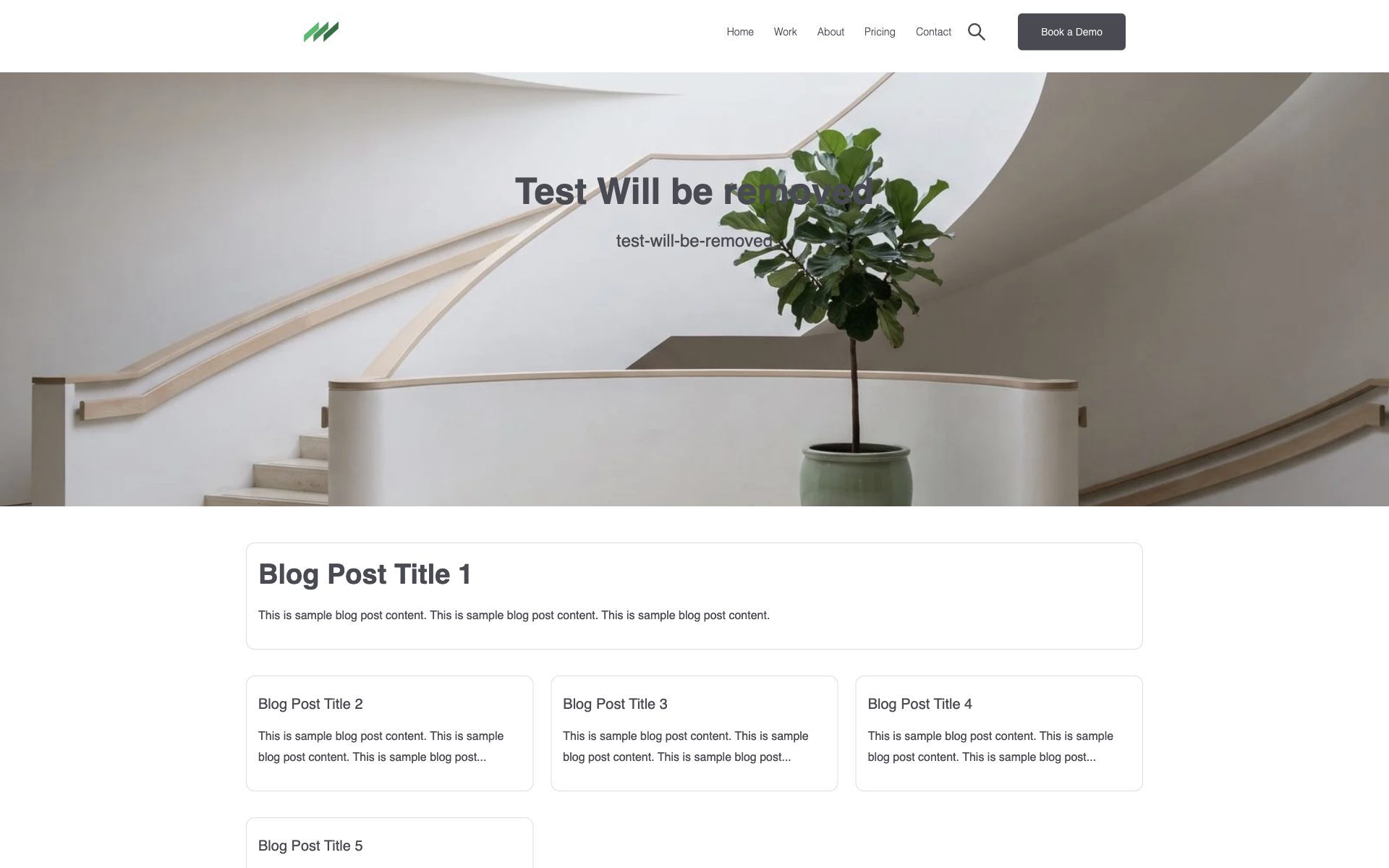
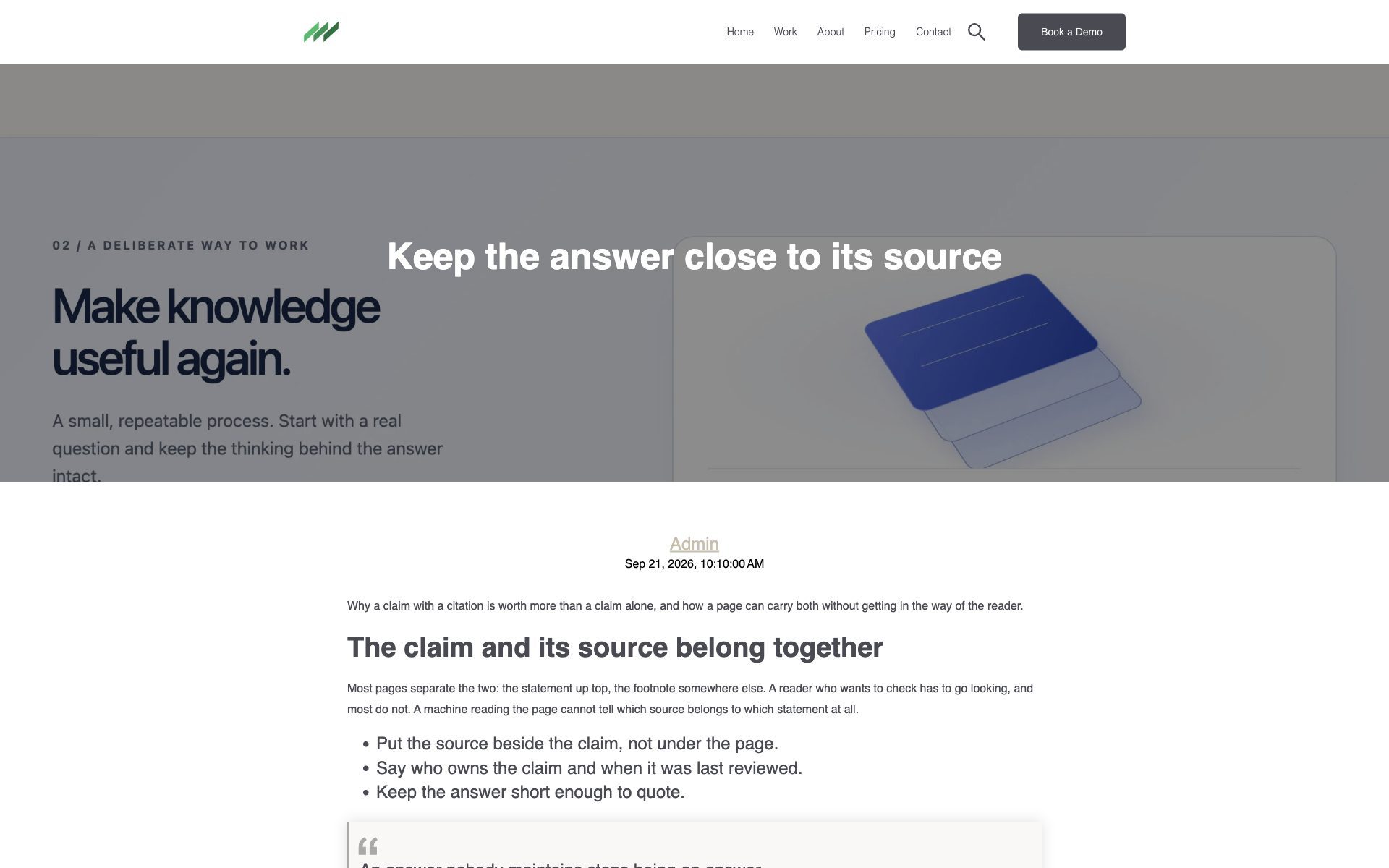
And eleven system templates, which HubSpot uses on its own: 404 and 500 errors, password prompt, search results, membership login, registration and the two password reset pages, email subscription preferences, subscription confirmation and backup unsubscribe. Set them once under Settings, Website, Pages, System pages, and Settings, Marketing, Email, Subscriptions.
6. The sections
A section is a ready row of modules you drop into any page from the editor's Sections tab. DeLight ships five, each a variation of the content banner:
| Section | What it is |
|---|---|
| Content banner, text and button | A heading, a paragraph and one button on a coloured band. |
| Content banner, two text columns | Two columns of text side by side, for a comparison or a pair of arguments. |
| Content banner, text and FAQ | An introduction beside the questions and answers module. |
| Content banner, text and image | Text on one side, a picture on the other. |
| Feature items | A row of feature boxes built from drag and drop elements, so the count and the layout are yours. |
7. The modules
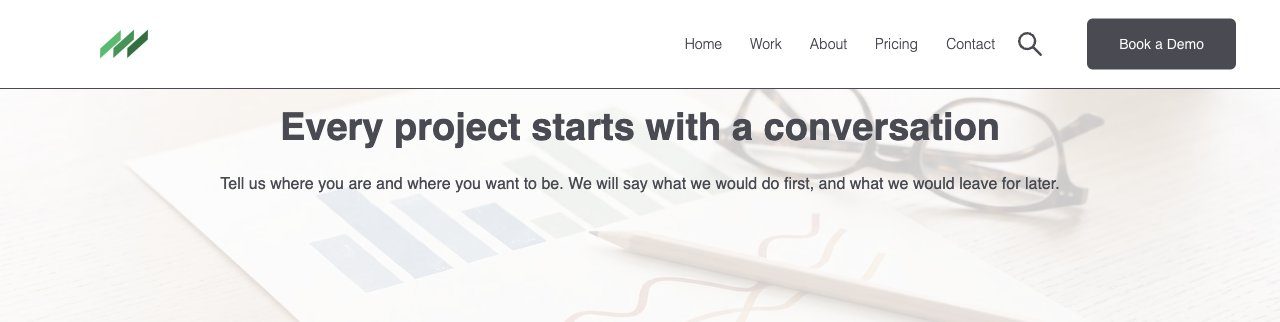
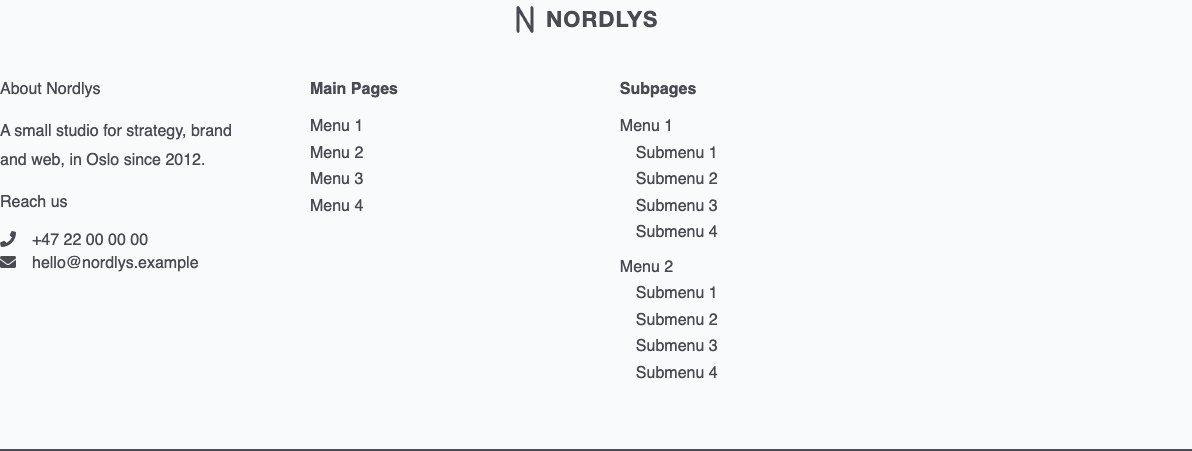
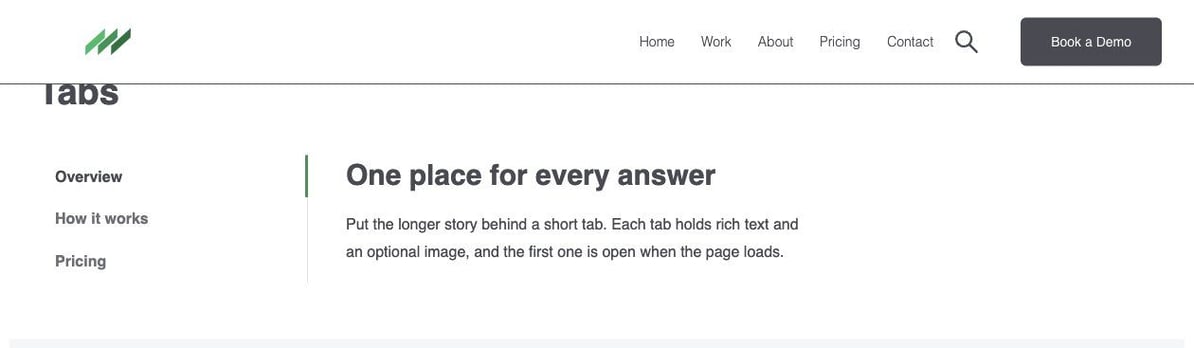
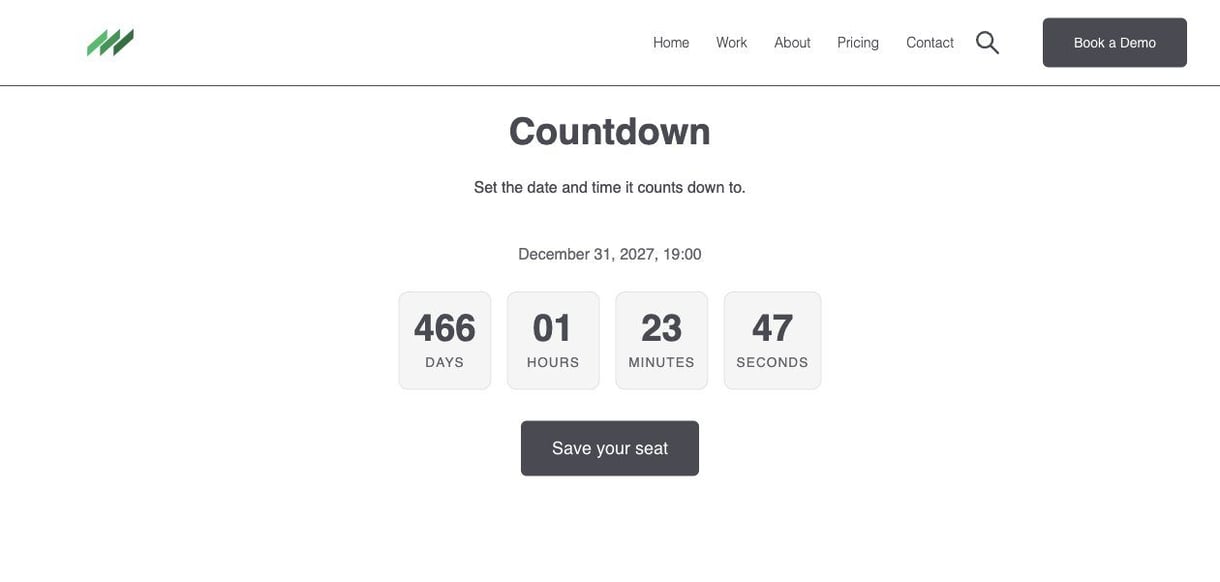
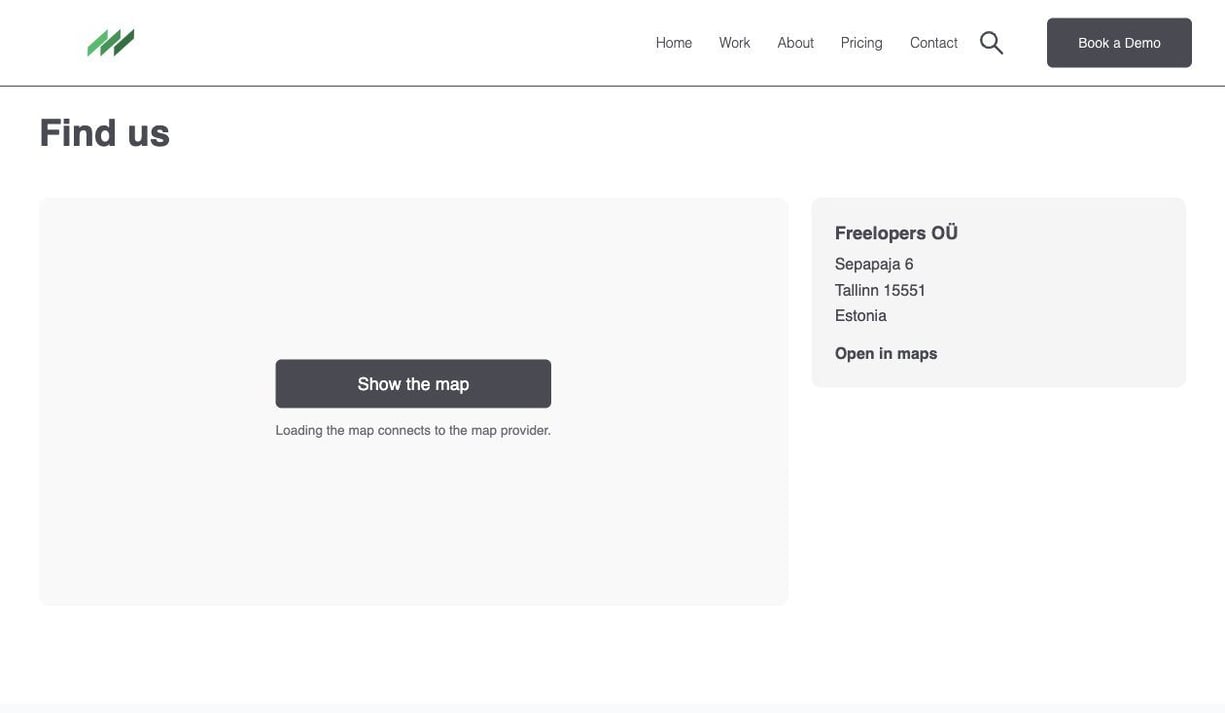
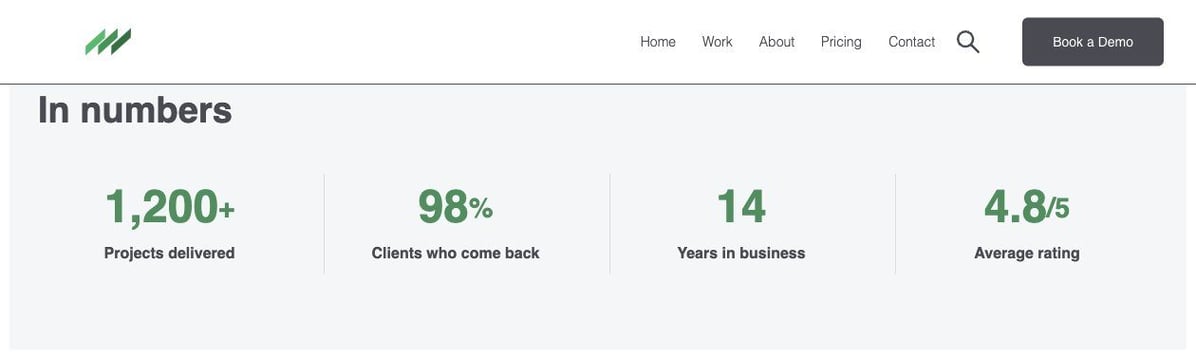
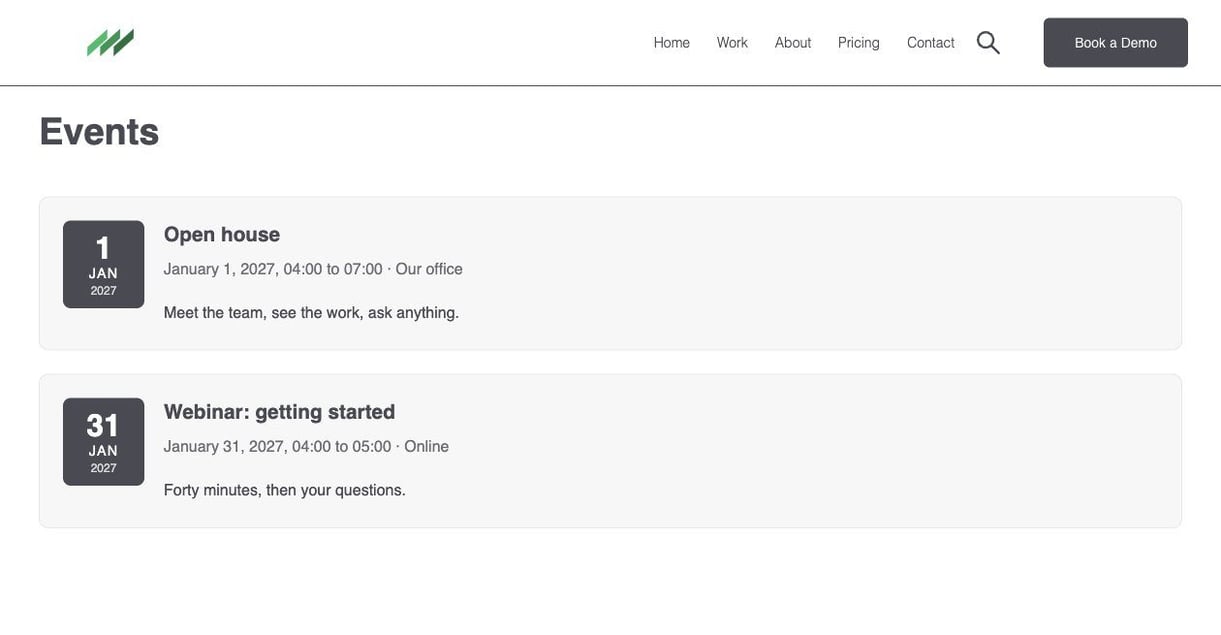
Thirty-nine modules, every one editable in the page editor and available in the Modules tab. Some of them, as they render:

| Module | Use it for |
|---|---|
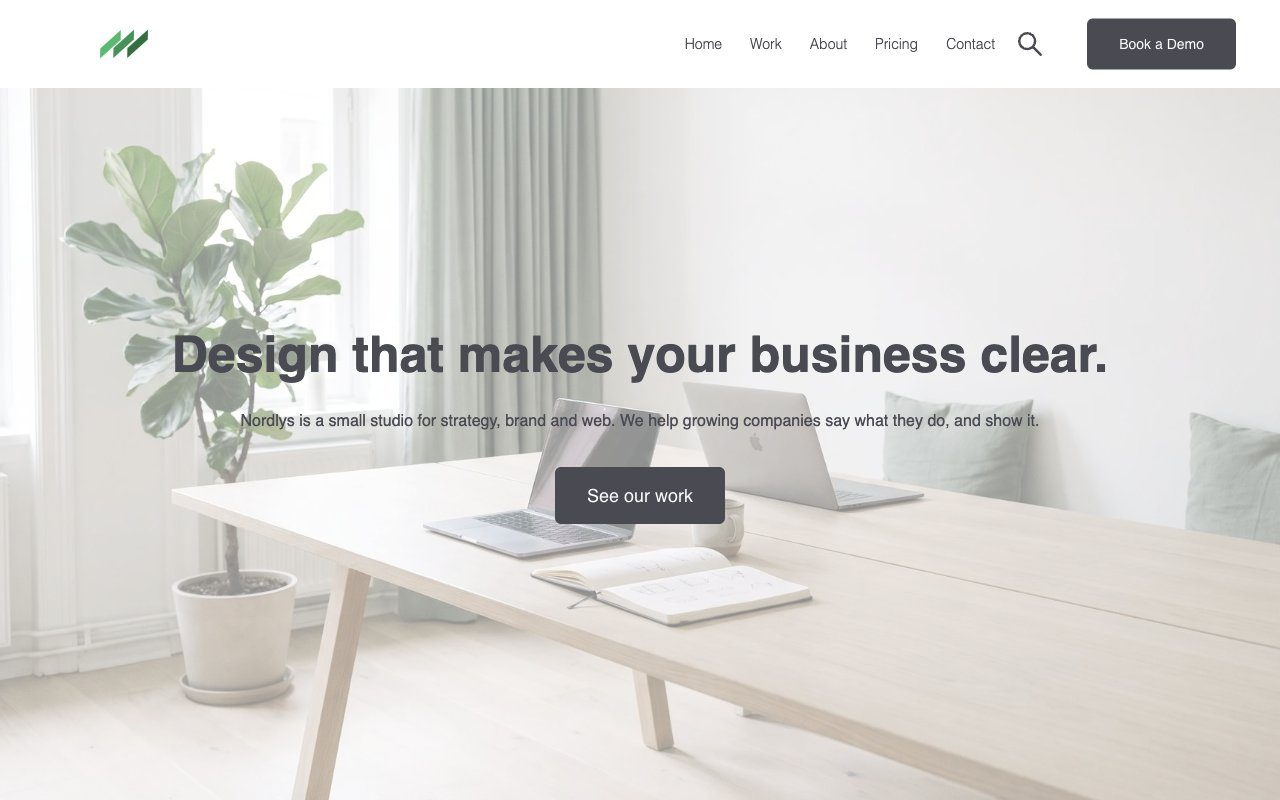
| Hero banner, Hero banner with overlapping images, Hero banner blog | The top of a page: a headline over a photograph or a video, with an image collage, or the blog's own hero. |
| Content banner | A heading, a text and a button on a band; the workhorse for calls to action and introductions. |
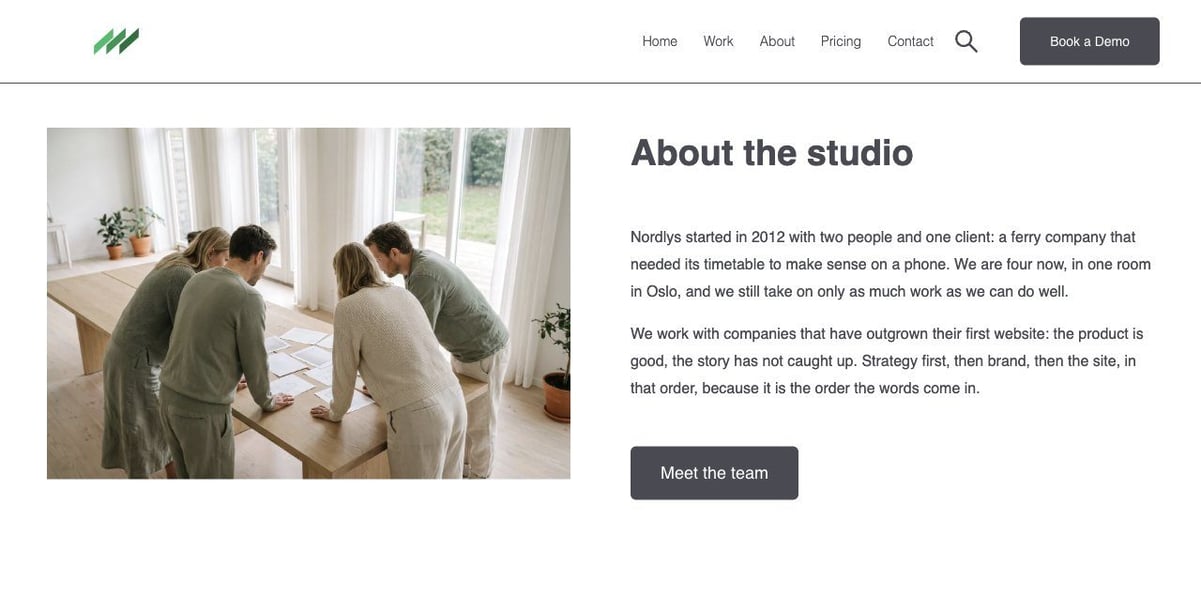
| Two column image and text, Two column full width box, Two column list view | Picture beside text, two full-width boxes, or a list beside a text. |
| Features box view, Boxes, Multiple cards, Bottom cards, Single card item, Single hover up card | Feature grids and cards, with or without images, hover effects included. |
| Pricing cards | Two to four plans with a feature list and a button each. |
| Testimonial block | Quotes with name and role. |
| Team members | People with a photo, a name and a role. |
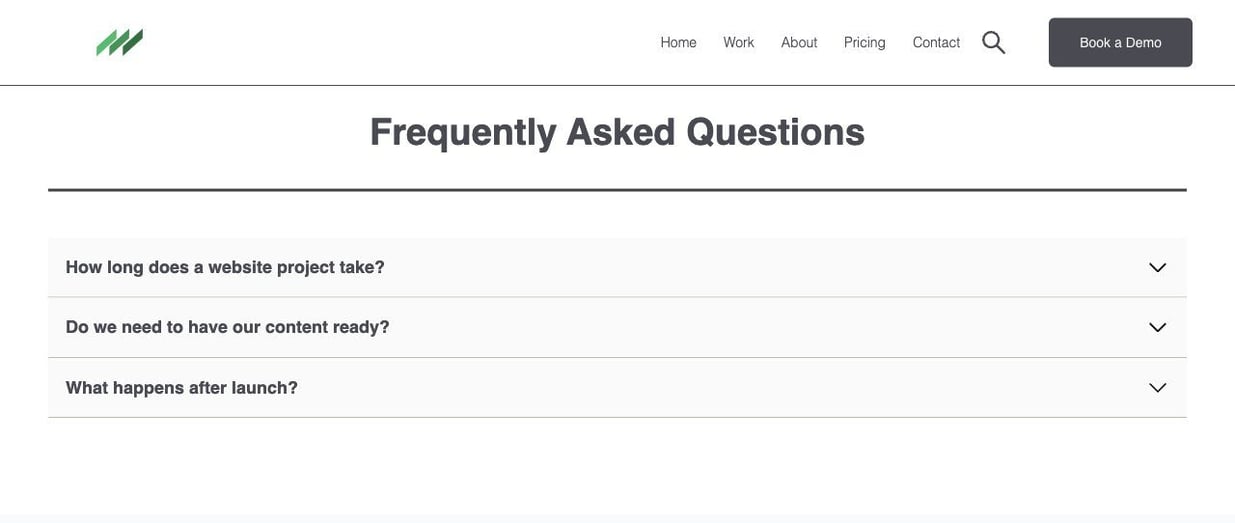
| Frequently asked questions | Questions that open and close. |
| Timeline | Dated milestones in order. |
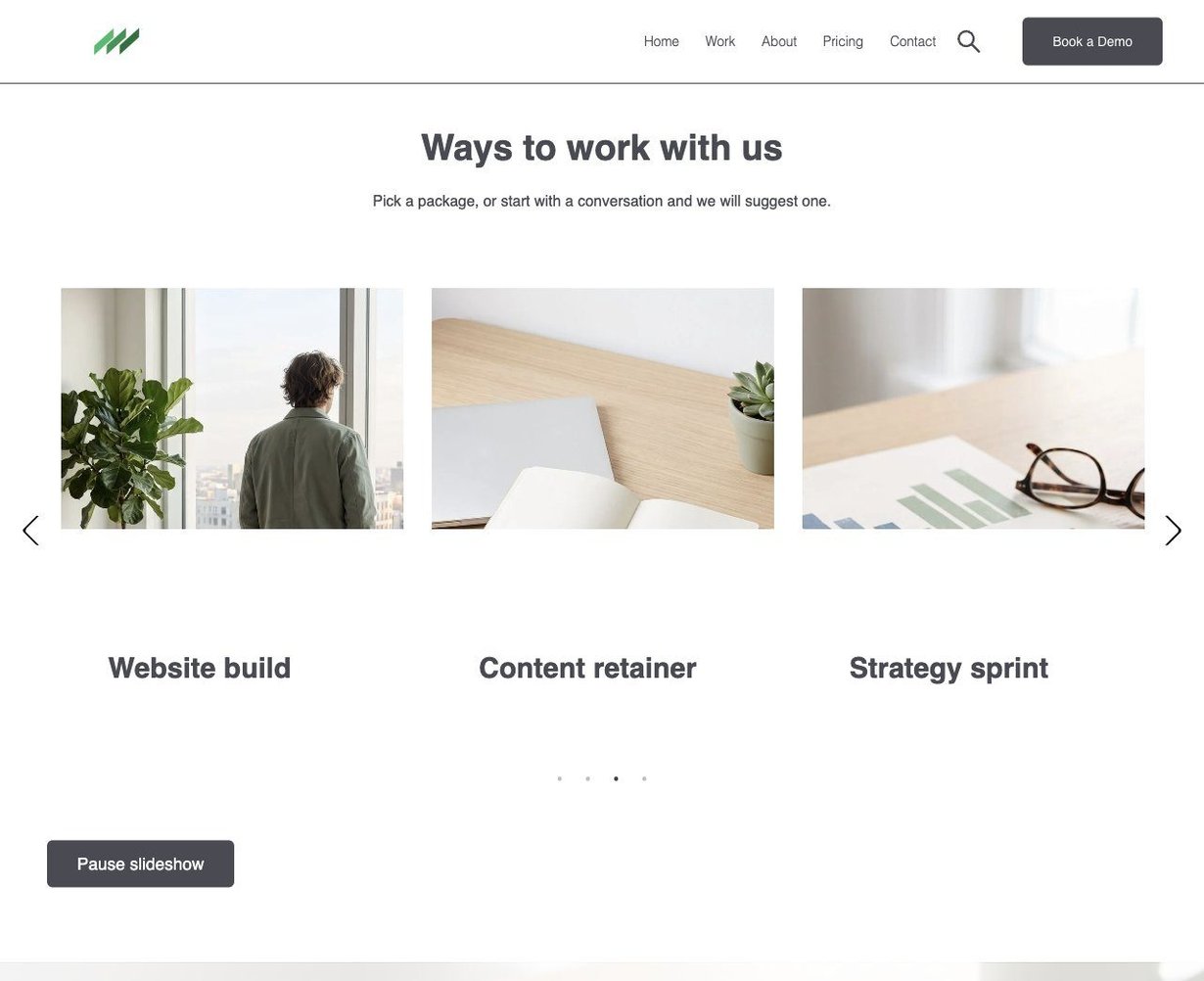
| Content slider, Logo slider, Gallery view | Sliding content, a row of client logos, a picture grid. |
| Customizable button | One button, its colours and size set on the module. |
| Landing | The landing page hero with a form. |
| Contact us form | A HubSpot form with the theme's styling and a title. |
| Recent blog posts, Social sharing, Social follow | The latest posts on any page, sharing buttons on a post, your profiles anywhere. |
| Menu section header, Site search input, Footer | The header with its menu, the search box, and the footer: the three global modules. |
| 404 content banner, 500 content banner | The message on the two error pages. |
| Tabs, Countdown, Map, Number counters, Events, Breadcrumb | New in 2.2, described above. Each has a header, its items, and the colour and padding controls the other modules have. |
Search & AI
Since 2.2 the theme describes its content to search engines and AI assistants as structured data (JSON-LD), invisible on the page. Every page carries the site graph: the organisation from your default footer address (Settings, Marketing, Email, Configuration, Footer addresses; not Account Defaults), the website with its search action, the page, and a breadcrumb trail. On top of that, seven modules publish their own content when their Search & AI switch is on, which it is by default:
| Module | What it publishes |
|---|---|
| Frequently asked questions | The questions and answers as an FAQPage. |
| Pricing cards | Each plan as a Product; a plan gets an Offer when its numeric Price field is set and the module names a currency. |
| Team members | Each member as a Person who works for your organisation, with role, picture, link and profiles. |
| Testimonial block | A Review, only when a rating from 1 to 5 is entered; choose whether it reviews the organisation, a product or a service. |
| Events | Each event with its dates, place or online location, and link, organised by your organisation. |
| Map | The place with its address, map link and coordinates, as your organisation's location or as a place of its own. |
| Breadcrumb | The trail as a BreadcrumbList, when Theme settings, Search & AI, Breadcrumb data is set to From the Breadcrumb module, so a page never carries two trails. |
| Blog post | Every post as a BlogPosting with its author, dates, tags and featured image. |
Check a page with Google's Rich Results Test after you fill in the address marked Default under Settings, Marketing, Email, Configuration, Footer addresses, then publish the page again. Nothing is invented: a field left empty is left out of the data.
8. Navigation, search and languages
- Menu. Create or edit your menu under Settings, Website, Navigation menus, then choose it on the header module (Menu section header) from any page; it is global, so one choice serves every page. Two levels of children are supported.
- Sticky header. Website header, Enable Sticky Nav, in theme settings.
- Search. Drop the Site search input where you want it and set the Search results system page to DeLight's template. Results show pages and posts whose titles or content match.
- Languages. Create a translation of a page from the page's Language menu; the header's language switcher lists every language the page exists in. Module labels shown to visitors (such as Read more) are fields, so translate them on the translated page.
9. The blog
- Under Settings, Website, Blog, choose the blog and set its templates to DeLight, Blog Listing and DeLight, Blog Post.
- Set the blog's typography under Blog configuration in theme settings; it is separate from the site's, so long posts can read differently from landing pages.
- Give every post a featured image; the listing cards and the post hero use it.
- Add Recent blog posts to the home page to surface the latest three.
10. Forms
Build the form under Marketing, Forms, then choose it on the Contact us form module or on the Landing hero. Colours come from the Forms group in theme settings. Submit a test entry before launch and confirm the notification email arrives.
11. Check before publishing
- Every sample text and image replaced, on every page, including the footer and the error pages.
- Page title and description set on every page.
- The menu points at published pages; no link to a draft.
- One
h1per page; the hero's heading level is a field. - Every image has alt text; the fields are there on every image.
- A phone preview of the home page, a landing page and a post.
- A test form submission received.
12. Update the theme
When a new version is published, the Marketplace shows Update on the theme under Settings, Website, Themes and Modules. Before pressing it:
- Read the release notes on the listing.
- If you changed the theme's files directly rather than in a child theme, back them up: an update replaces the theme's files. A child theme keeps its overrides.
- Update, then open the home page, a landing page and a post and look at them once. Saved content is not touched by an update; only the theme's code is.
Version 2.2 adds six modules (Tabs, Countdown, Map, Number counters, Events, Breadcrumb), structured data across the theme with a Search & AI switch per module and in theme settings, a compact header and footer layout for every template (Classic stays available in theme settings), new demo photography and copy inside the theme, a default menu in the header before one is chosen, and jQuery, AOS and Font Awesome served from the theme itself. It fixes the solid icon font, which had not loaded since 1.0, and the footer's default form. Existing layouts and saved content stay unchanged.
Version 2.1 adds the Home Modern template, improves mobile menus, search, questions and sliders, tidies the editor fields and labels, and fixes responsive logo sliders, desktop arrow overflow, third-level menus, product heading defaults, the home video starter and the stock footer images. Existing layouts and saved content stay unchanged.
13. Support
Write to support@freelopers.com with the theme version, the page address, the browser and device, and the steps that show the problem. Do not send passwords or API keys. We answer within two working days, Monday to Friday, Central European time.
For a tailored setup, a migration, custom modules or ongoing work, tell us about your project.
14. Questions
Is DeLight free?
Yes, and it stays free. Support by email is included.
Can I change the colours, fonts and page content?
All of it: colours and fonts in theme settings, content in the page editor, without code.
Can I use it for a landing page only?
Yes. The three landing page templates work on their own; the header and footer are optional on them.
What happens to my pages when I update?
Nothing. An update replaces the theme's files; the content you saved on each page stays as it is.
Is there a more capable theme from the same team?
Answerable, built to be read by answer engines: sixteen of its twenty-four modules publish structured data, with three motion levels and a setup guide. DeLight remains the free one.