HubSpot theme setup guide
Answerable
A HubSpot CMS theme for a site that wants to be read by people and by the machines that answer for them. Sixteen section modules can publish what they are, as structured data, in the HTML a crawler receives. Motion is a layer on top, in three levels, with a switch for the visitor.
- What the theme is
- Getting started
- The page, top to bottom
- Theme settings
- The modules
- The rules every module shares
- Motion
- Structured data
- Building a page
- Questions
1. What the theme is
Answerable's home page is one argument in the order a careful reader wants it: the page's
question and its answer first, then the evidence, the method, when it fits and when it does not, the
questions a reader still has, and where to go next. A machine reading the page gets the same order as
typed data: the hero's short answer as a Question, the evidence cards as
Claims, each citing its source once you add one, the method as a HowTo, the
comparison as two Things, one for each option, the questions as an FAQPage.
The layout adds the site graph: who publishes the page, what the page is, when it changed and, when you
turn it on, how to search the site.
Everything a reader needs is in the page before any script runs. There is no dependency, no web font unless you choose one in the theme settings (HubSpot then serves it from your own domain), and the theme loads nothing from another domain, except the player of a YouTube or Vimeo video you choose in the Video with transcript module, which loads when the visitor presses play. Your account's own settings may add HubSpot tracking, a cookie banner or chat, and a HubSpot form brings HubSpot's own form script; those load with any theme. HubSpot's own Lighthouse test of the theme's templates scored desktop 96 / 99 / 97 and mobile 96 / 99 / 86 for accessibility, best practices and performance. HubSpot's command line tool ran it on 24 September 2026, before the 1 October settings release. HubSpot's marketplace validator last passed the listing source on 1 October 2026. Every check, with a way to run it yourself, is on the proof page.
2. Getting started
- Install the theme from the HubSpot Marketplace. After purchase it appears under Marketplace Downloads (Settings, Integrations, Marketplace Downloads, or the Marketplace icon in the top bar), and in the theme picker when you create a page.
- Set the organisation. Settings, Marketing, Email, Configuration, Footer addresses: edit the address marked Default with your company name, street, city, postal code and country. That is where HubSpot keeps the company details a theme can read; Account Defaults is not. The site graph publishes the address only when street, city and country are all filled in, and adds the postal code and region when they are there.
- Open the theme settings from Marketplace Downloads (Actions, Edit theme settings), or in the page editor: the Edit menu, Theme: Answerable. Set the logo, the brand colours and the fonts, then click Publish theme. The logo starts as the primary logo in your HubSpot brand kit. The header and footer menus can be set here by id, or picked in the global header and footer (step 5). A menu's id is the number at the end of the address while that menu is open in Settings, Content, Navigation menus; for the default menu, open another menu first, then open the default menu again. With no menu set either way, they show the account's default menu.
- Create a page from the Home template. It comes with all six modules in order; replace the sample content, module by module, starting with the hero's question and answer. Sources, owners and review dates start empty, and show only once you add them.
- Set the global header and footer. In the page editor, click the header or the
footer, then Open in global content editor. Pick the menus (the header's Navigation
module, the footer's Footer links), set the header's button (the Call to action on its
Navigation module), and replace the footer's tagline and its bottom row: the left text starts empty, and
the right one, the credit, starts as “© Your company” with no year: type your company’s name there. The words on
the header's menu button and on the footer's motion switch are text fields there too, empty by default,
so they follow the page's language until you type your own. Then publish to all pages: the
header and footer are global content, so the change shows on every page. The header's button links to
#next-step; on a page without that section it leads to the home page's. - Set the blog's templates, if the site has a blog. Settings, Content, Blog, Templates tab: for Blog Post Template and Blog Listing Page, Actions, Change template, then pick Answerable's Blog post and Blog listing. Both show a post's date as the day, in the page's language, without the time.
- Check it as a crawler would. View the published page's source: six
application/ld+jsonblocks, oneh1, and every answer visible without a script.
3. The page, top to bottom
| Module | For the reader | For the machine |
|---|---|---|
| Answer brief | Asks the page's question and answers it in a sentence or two, before anything else | Question with its accepted Answer |
| Evidence cards | Three claims that hold the answer up, each with where it comes from | ItemList of Claim, each with its citation once a source is added |
| Method explorer | How it is done, in three steps, with what you start and leave with | HowTo with a HowToStep each |
| Fit comparison | When it is the right choice and when it is not, as a real table | ItemList of two Things, each described by its rows |
| Expert answers | The questions a reader still has, each answered and sourced | FAQPage |
| Next step | Where to go now, by the reader's situation | nothing, on purpose: a call to action is interface, not content |
The small badges beside each eyebrow on the live examples ({ } Question,
{ } Claim ×3, { } HowTo) name the type each block publishes. Each comes from
Show the schema badge, a switch on every module that publishes data, off by default, and a badge
shows only when its block actually publishes data.
4. Theme settings
Set once, and every template follows; at the defaults the theme looks exactly as designed. Open them from Marketplace Downloads (Actions, Edit theme settings), or in the page editor: the Edit menu, Theme: Answerable. When you are done, click Publish theme.
| Group | What it holds |
|---|---|
| Brand | Logo and its width. Primary colour, the accent: the hero's eyebrow and emphasis, icons, the logo mark, a highlighted column, source links while Typography, Link is at its default, and the tints and glows made from it. Secondary colour, a pale tint for fills: behind icons, a highlighted column, soft panels. Buttons have their own colours under Buttons. |
| Typography | Body text font and size: the font of the page's text and the size of its paragraphs and lists, the theme's smaller and larger text keeping its proportion; without a font chosen, each device's own system font. Heading 1 to Heading 6, each a font, a size and bold; without a font chosen, headings use the body font. Link colour for links in running text (at the default a link takes the colour of the text around it, while source links take the primary colour; on navy grounds and in the On this page list links keep the text colour), its hover colour, underline on or off. |
| Colours | Page background, card and panel background, body text, headings and strong text, quiet text, rules and borders, focus outline. |
| Buttons | Text, background, border and their hover states; corner radius (half the button's height or more makes a pill); button text font and size, which smaller buttons keep in proportion. HubSpot's own Button module takes them too. |
| Forms | Form background, border, label colour, field border, button colours and their hover; form text font and size. |
| Header | Layout (brand left with the menu right, or brand above a centred menu); background, slightly see-through by default; text and navigation colour, and navigation on hover; navigation font and size; a separate logo; the id of the HubSpot menu to render. |
| Footer | Background (at the default it shows the page background); text, link and link hover colours; footer font and size, which the links and the bottom row keep in proportion; a separate logo; the id of the HubSpot menu to render. No layout choice. |
| Layout | Maximum content width, corner radius, spacing: compact, regular or roomy, the space above and below every section whose Section spacing is Comfortable, the default for most. The Answer brief keeps its own padding, which only its own Section spacing changes. |
| Answer engines | Organization type for the site graph. Publish a site search action, off by default: turn it on only when the search page exists, and choose it under Which search page. Mark the heading and the direct answer as speakable, which points a voice assistant at the page's h1 and, on a page with an Answer brief, at its direct answer. |
For h1 and h2 the size is the largest, on wide screens; narrower screens scale
it down. Every place that sets a heading larger or smaller keeps its proportion to the size chosen, the
hero's h1 included.
The logo starts as the primary logo in your HubSpot brand kit; choosing an image under Brand replaces it. It shows in the header and footer unless they have their own, and it is published as the organisation's logo. With no logo at all, the header and footer show your company name beside the theme's mark.
5. The modules
Twenty-four modules. 5.1 to 5.6 are the six on the Home template, 5.7 lists the site kit, sixteen more for the rest of a site, and 5.8 covers the two fragments. Every section module groups its fields in the same order in the editor: Content (what it says), the module's own groups, Answer engines (what it publishes, on the sixteen modules that publish data), Labels on some (your own words for the ones the module writes itself), and Style (how it looks), on the editor's Styles tab.
5.1 Answer brief
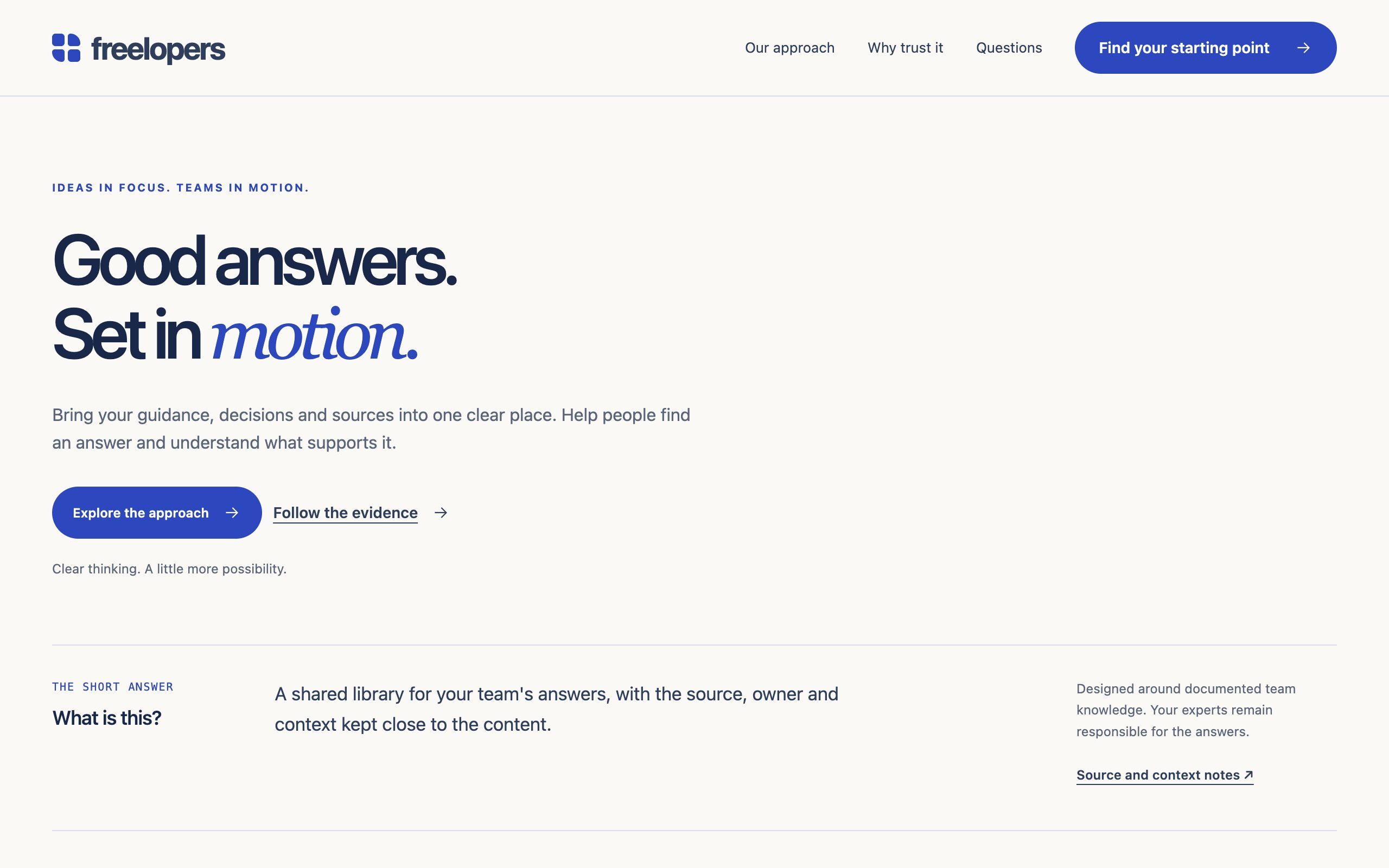
The hero. The page's only h1, a scene beside it, and the short answer under both.
| Field | What it does |
|---|---|
| Eyebrow, Heading, Heading element | The small line above the headline; the headline, where a line break starts the second line; the element, h1 by default. Change the element only when the page has an h1 elsewhere. |
| Word to emphasise | A word from the second line, set in the accent italic. Leave it empty for none. |
| Short description, Footnote, Anchor | One or two sentences under the headline; a quiet line under the buttons; the section's id. |
| Calls to action | Up to three, each a text, a link and a style: button, secondary button or text link. Nothing renders until both a text and a destination are set. |
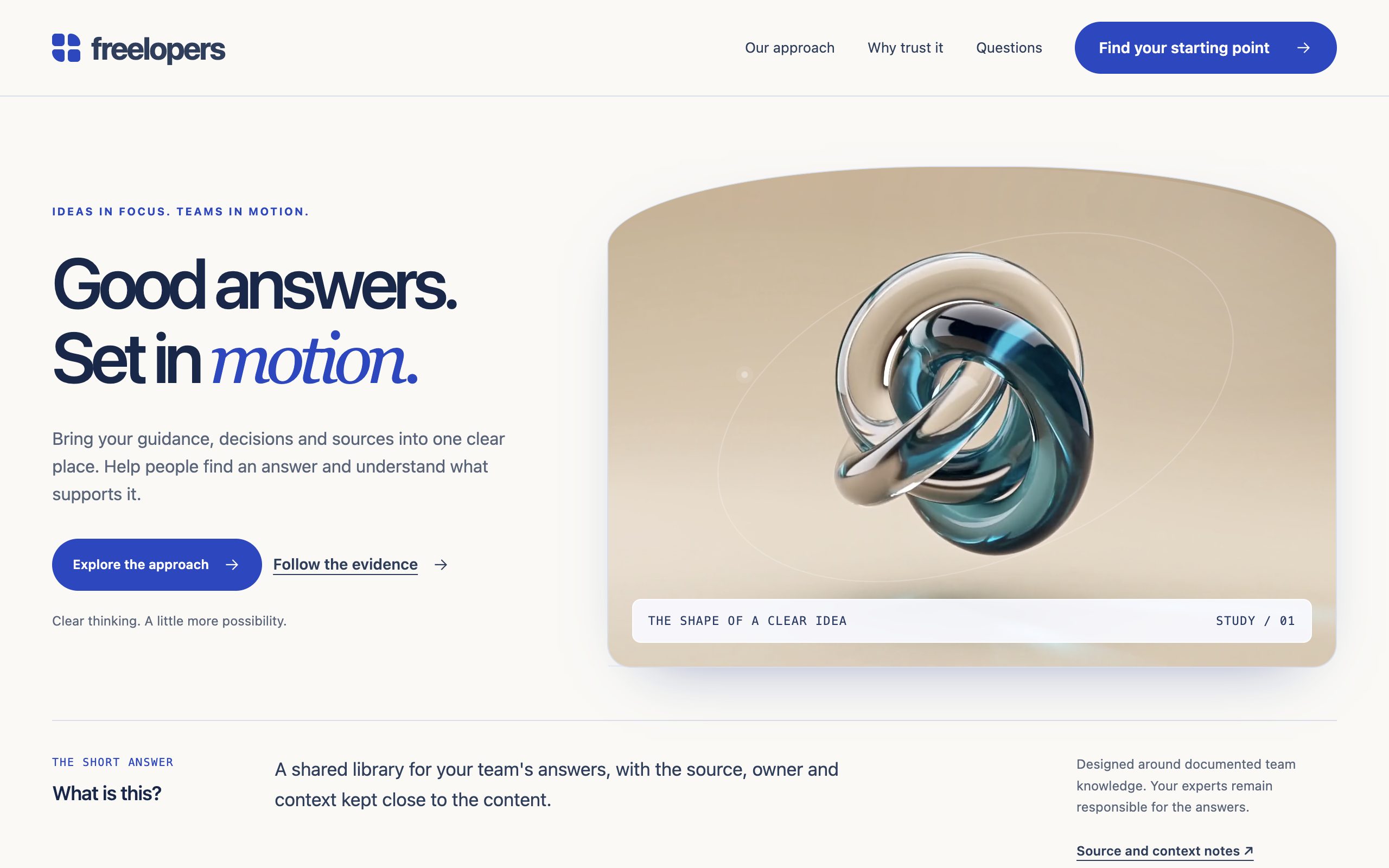
| Hero scene: What the scene shows | A photograph, the abstract art with a clip, or no scene. With no scene the copy widens. |
| Hero scene: Motion level | Heavy, medium or light, for the whole page. See Motion. |
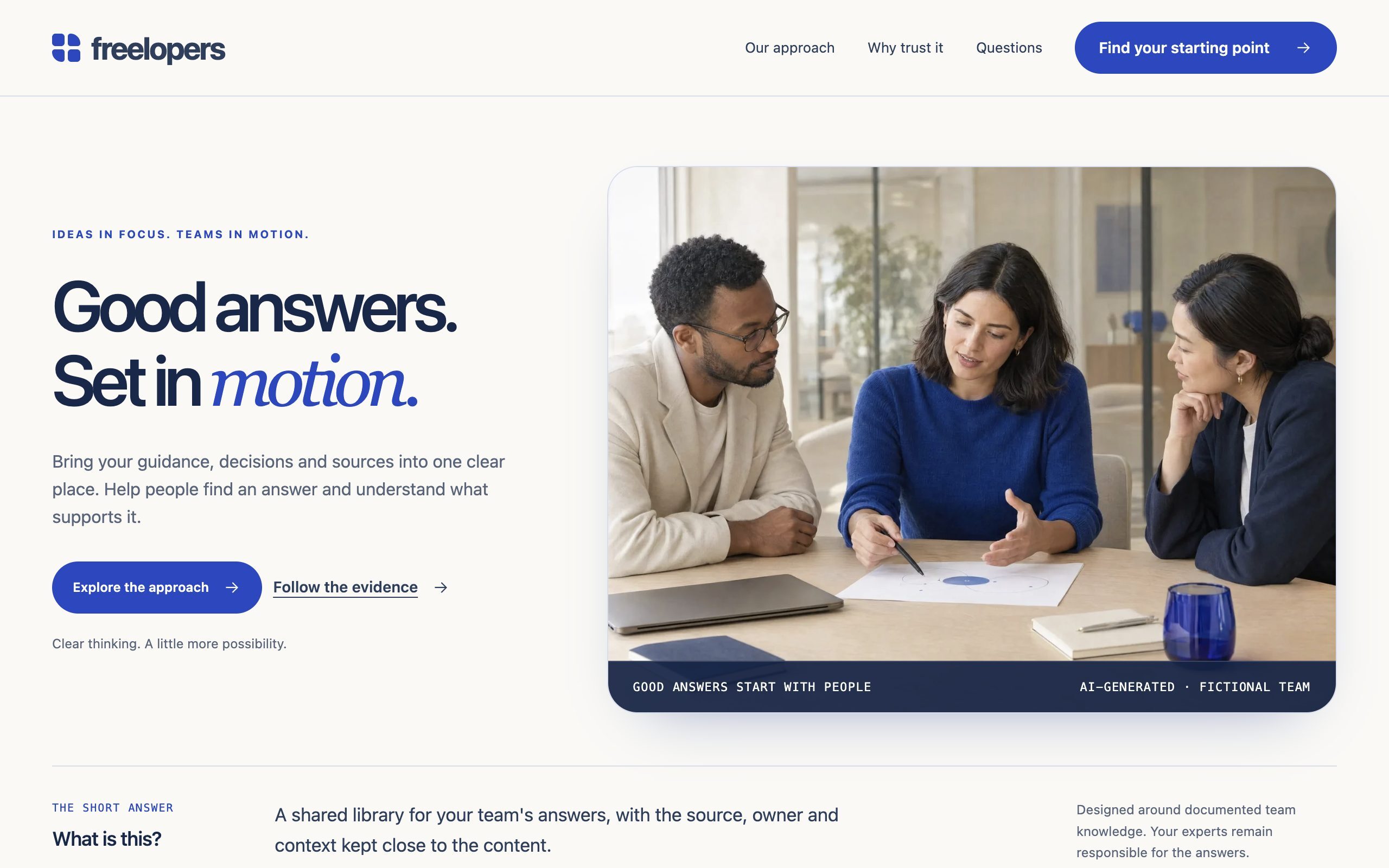
| Hero scene: Photograph, Abstract scene clip, Photograph in motion | Until you choose a photograph, the hero shows the theme's own: an AI-generated picture of people who do not exist. The licence lets you publish it; we recommend replacing it with your own. Each clip is a short silent mp4 from the File Manager: Abstract scene clip for the abstract scene, Photograph in motion for the photograph, a loop made from the same photograph whose first frame matches it. Each appears once What the scene shows is set to its scene. A clip loads only while its scene is on screen and motion is on: heavy plays it, medium waits for Play scene, light never loads it, and a 2G connection, or one that is saving data, waits for a press. |
| Hero scene: Caption, left and Caption, right | Two short lines over the scene, in capitals. Both start empty. While the scene shows the theme's own photograph and Caption, right is empty, the right caption reads AI-generated · fictional team, in the page's language. Choose your own photograph and that notice goes; a caption you type always wins. |
| The short answer: Kicker, The question, The direct answer, Scope, Source | The label above the question; the question in a reader's words; the sentence or two an answer engine quotes; what the answer does and does not cover; where the notes behind it live, shown as a link under the scope. The source starts empty, so no link shows and no citation is published until you add one. |
| Answer engines | Publish the question and answer as structured data, on by default; Show the schema badge, off by default. |
| Style | Heading size and The question under the hero size, how large the headline and the question look, whatever their elements; Text size; Surface; Section spacing, the hero's own vertical padding: Comfortable, the default, keeps the padding it was designed with, Compact makes it tighter and Generous roomier. |
Publishes a Question with @id, mainEntityOfPage
and an acceptedAnswer whose url points back at the section and whose
citation is the source's link, when there is one. Nothing is published until both The
question and The direct answer are filled in. The layout's speakable specification points
at the h1 and this answer.
5.2 Evidence cards
One to eight claims in a grid, each with its source and, behind a disclosure, the reasoning.
| Field | What it does |
|---|---|
| Content | Eyebrow, Heading, Heading element, Introduction, Calls to action, Note under the cards (starts empty), Anchor. |
| Evidence cards: Symbol, Kicker, The claim, Explanation | An icon (link, person, document, check, clock, none); the small line after the index; the claim in one sentence; what it means in practice. |
| Evidence cards: Source | Source type (the small line above the link), Link text and Source, the link. All three start empty: nothing shows until the link is set, and the link is published as the claim's citation. |
| Evidence cards: Why this matters | The reasoning, shown behind a Why this matters disclosure. Leave it empty to hide the disclosure. The Labels group's own Why this matters field only changes the disclosure's words. |
| Evidence cards: Owner, The owner is, Last reviewed | A credit line under the source, shown only when entered. Fill them on a real site; they are the part of an answer that makes it trustworthy. The owner is a person, or a team or organisation. Only an owner set as a team or organisation, and written exactly as the company name in the address marked Default under Settings, Marketing, Email, Configuration, Footer addresses, is linked to the site's organisation. |
| Style | Heading size, Card heading size, Text size, Surface, Section spacing, and Columns: fit to the number of cards, one, two or three. |
Publishes an ItemList of Claim. A claim needs only The
claim to be published; citation, author and review date appear when entered.
5.3 Method explorer
Three steps as tabs beside a panel, each with what you start with and what you leave with. With scripts off all three panels are readable in order.
| Field | What it does |
|---|---|
| Content | Eyebrow, Heading, Heading element, Introduction, Calls to action, Anchor. |
| Steps: Tab label, Step heading, Explanation | The word on the tab; the step's heading; what happens in it. |
| Steps: Start with, Leave with | What you start the step with and what you leave it with, shown under those two words. The Labels group can change the two words. |
| Steps: Picture (Image, Loop) | An image above the step; left empty, the theme's own picture for that step. Loop: an optional short silent mp4 whose first frame matches the image, played only at heavy motion while its step is open and on screen, never on a 2G or data-saving connection. |
| Steps: Source | Where the reasoning behind the step lives. It starts empty; once it has a link, the link shows at the end of the step with the arrow, reading Explore the reasoning unless you give it a Link text. |
| Style | Heading size, Step heading size, Text size, Surface, Section spacing, and Step art: Pictures (the default), Shapes drawn in CSS, or None. |
Publishes a HowTo with three HowToSteps; a step with a source
link carries it as its URL. At heavy motion the step's picture drifts, or the shapes float, and with a
fine pointer the art tilts with it.
5.4 Fit comparison
A real table with three fixed columns: the consideration, the reference option, the option this page argues for. It scrolls inside its own region on a phone. A comparison with more options is a different module, not a setting.
| Field | What it does |
|---|---|
| Content | Eyebrow, Heading, Heading element, Introduction, Calls to action; First column heading, Second column heading and Third column heading; Table caption, read by screen readers; Note under the table (starts empty); Anchor. |
| Rows: Criterion, Second column, Third column | One row each: the thing compared, how the reference option handles it, how the highlighted option handles it. |
| Style | Heading size, Text size, Surface, Section spacing. |
Publishes an ItemList of two Things, one for each option: each
takes its column's heading as its name and its rows as its description, one sentence per row, such as
What you start with: A topic to explore. The schema badge reads Thing ×2. Not
Product: schema.org has no type for a comparison of approaches, and Google treats a
Product without an offer or a review as an invalid product snippet.
5.5 Expert answers
Questions with answers, each a native <details>: it opens without scripts and a
screen reader announces its state.
| Field | What it does |
|---|---|
| Content | Eyebrow, Heading, Heading element, Introduction (such as what the questions cover or where the answers come from), Calls to action, Anchor. |
| Questions: Question, Answer | Published as the FAQ question and its accepted answer. Keep answers self-contained: an answer that says "see above" is useless once quoted. |
| Questions: Source, Owner, Last reviewed | The source starts empty; once it has a link, the link shows under the answer, reading Read the source unless you give it a Link text, and is published as the answer's citation. Owner and Last reviewed make the credit line, shown only when entered. |
| Style | Heading size, Question size, Text size, Surface, Section spacing, and Disclosure motion: follow the page, a level of its own, or none. |
Publishes an FAQPage with every question that has an answer.
5.6 Next step
The decision guide: two to four situations as buttons, one route each, in a dark shell.
| Field | What it does |
|---|---|
| Content | Eyebrow, Heading, Heading element, Introduction, Calls to action, Label for the choice of routes (read by screen readers), Anchor. |
| Routes: Tab label, Route heading, Explanation, Example question | The word on the button; the first thing this team should do; why; the question they keep hearing, shown as a quote. |
| Routes: Call to action | Text, Link, Style. |
| Style | Heading size, Route heading size, Text size, Surface, Section spacing. |
Publishes nothing, on purpose.
5.7 The site kit, sixteen more modules
| Module | What it is | Publishes |
|---|---|---|
| Simple hero | An inner page's opening: headline, introduction, actions, an optional image. Sets the page's motion level when first, with its own Motion level under Style. | nothing beyond the page |
| Feature split | Copy beside a picture, up to six points as a list. Image side, under Style, puts the picture on the right or the left. Without an image it shows the theme's own photograph. | nothing |
| Card grid | One to twelve cards with a symbol or image, kicker, heading, text and one action. | ItemList of Thing, the neutral default, or of Service, Product or WebPage, chosen under Answer engines |
| Call to action band | One statement and up to three actions, as a dark shell or flat on the section's surface. | nothing, on purpose |
| Pricing table | One to four plans with price, period, what is included, one action, one highlighted. A plan without a price reads On request; the two sample plans start that way. | Product with an Offer for each plan with a price; a plan without one is not published |
| Testimonials | Quotes with person, role, company, optional rating, and where the words were published. | Review only where a rating was given; switch starts off |
| Logo bar | A row of logos, the name shown as text when there is no image. | nothing |
| Statistics | Two to four figures with a caption, context and where each was measured. | Claim for each figure, with its source as the citation once it has one; switch starts off |
| People | Portrait, name, role, biography, areas of expertise, profile. | Person with jobTitle, knowsAbout, sameAs; switch starts off |
| Contact block | Email, phone, hours and the address from your default footer address beside a HubSpot form. Email, phone and hours start empty; until one is set, the editor shows where to add them. | ContactPoint on the organisation, once there is an email or a phone |
| Definitions | A glossary, each entry written to be quoted on its own. | DefinedTermSet of DefinedTerm |
| Sources | The references list: title, publisher, date, kind, link, note. | ItemList of CreativeWork |
| Publisher facts | Legal name, email, founding date, registration, profiles, address. | merges into the site's Organization by @id |
| Steps | A numbered process or a dated timeline, each step with an outcome and a source. | HowTo, or an ordered ItemList |
| Video with transcript | YouTube, Vimeo or an mp4, with poster, duration and transcript; an mp4 can carry captions from a WebVTT file. A YouTube or Vimeo player loads from its own domain, and only when the visitor presses play. Until a video is set, the editor shows where to add one. | VideoObject with transcript and caption |
| On this page | A contents list built from the page's sections, optionally sticky. | nothing; the headings are the structure |
Every one of them has the same head (eyebrow, heading, heading element, introduction, calls to action, anchor), the same style choices, and where it publishes data, the same switch and badge. Statistics, Testimonials and People start with Publish structured data off, because their sample content is invented: turn it on once the figures are real and sourced, for real reviews you have permission to publish, and once the cards name real people.
5.8 The fragments
Call to action link: one call to action with the theme's arrow, available anywhere: Text, Link and, under Style, Appearance, a button or a text link with an arrow. Navigation: a HubSpot menu rendered as the theme's own markup, one level of children as disclosures, an optional call to action at the end. Where it sits chooses the markup: a horizontal row for the header, a list for the footer, or In the page, as a row of links for a Navigation module dropped into page content. There the links sit in a navigation landmark named Page links, in the page's language, and Alignment, under Style, puts the row at the start, in the centre or at the end; the header and footer do not use it. The menu comes from the module field first, then from the menu id in theme settings, and with neither, the account's default menu. The header and footer are global content, so a menu chosen there applies to every page; a Navigation module dropped into one page's content shows its menu in that page only, and the header keeps the site menu.
6. The rules every module shares
- Anchor. Each section module has an Anchor field, the section's id, so
#evidencein a link scrolls there. Two copies of a module on one page need two anchors. - Heading element and size are separate. Heading element is a content decision and keeps the outline honest; subheadings inside a module take the next level down on their own. Heading size, the inner heading size (Subheading size, or a named one such as Card heading size or Step heading size) and Text size are style decisions, so an
h2can wear theh3size. - Calls to action. Every section has a group of up to three, each a text, a link and a style (button, secondary button, text link), so a button and a text link can sit side by side. The heroes, the call to action band, the contact block, feature split, on this page and publisher facts show them under their copy, the others at the end of the section. An item with its own action (a card, a plan, a route) has one, with the same three fields.
- A source is the same three fields wherever a module has a Source group: Source type (the small line above), Link text and Source (the link). Nothing shows and nothing is published until the link is set; in the Answer brief, Evidence cards, Expert answers and Method explorer all three start empty. Evidence cards and Statistics publish the link as the citation; the Answer brief and Expert answers publish it as the answer's citation; Method explorer, Steps, Definitions and Testimonials (rated quotes only) publish it as the item's URL. The type shows in Evidence cards, Statistics, Steps, Definitions and Testimonials; the Answer brief, Expert answers and Method explorer show only the link.
- Source links carry the ↗ mark; calls to action carry the arrow. A Method explorer step's link takes the arrow too, because it reads as the way forward.
- Surface and spacing. Every section can sit on the page colour, white, mist or navy (inverse, with every colour flipped for the text inside), and can be compact, comfortable or generous. A comfortable section follows the theme's Layout spacing; compact and generous set their own. The Answer brief is the exception at comfortable: it keeps the padding it was designed with.
- Structured data is a switch on each of the sixteen modules that publish data: Publish structured data, or, on the five home page modules that publish, a label that names the data, such as Publish these cards as structured data. Thirteen start on; Statistics, Testimonials and People start off, because their sample content is invented. Off, the section reads the same and publishes nothing. Turn it off on the second copy of a module, so the page does not publish the same data twice.
- Interface words follow the page's language. The words the theme writes itself (Menu, Close, Motion: on, Motion: off, Play scene, Why this matters, Transcript, the notice over the theme's photograph, the blog's page links, the contact and publisher labels and others) are in English, German, French, Spanish, Italian, Dutch, Portuguese or Turkish, as the page is; any other language gets the English words. A module with a Labels group takes your own words there instead, and so do the text fields for the menu button and the motion switch in the global header and footer.
- Nothing is invented about you. Owners, review dates, prices and ratings start empty, and so do the sources in the Answer brief, Evidence cards, Expert answers and Method explorer. No rating, price or person appears in the data of a new page unless it was typed into a field, and the only dates an editor does not type are the ones HubSpot records when a page is published or changed. The rest of the sample content is a placeholder, published as written until you replace it.
7. Motion
Three levels: heavy, medium and light. The first hero on a page sets the level for the whole page: the
Answer brief with Motion level in its Hero scene group, or the Simple hero with
Motion level under Style. A page with neither runs at heavy. For a preview,
?motion=light on the address sets the level. The visitor can turn all of it off with the
switch in the footer, and a device that asks for reduced motion always wins. On a 2G connection, or one
that is saving data, the hero clip waits for a press of Play scene, the step loops stay off, and the
headline's line by line entrance, the tokens, the sparks, the cube and the scene's response to the
pointer do not start when the page opens. Section entrances, the accent word, the evidence light, the
comparison rows, the badges, the method art's drift, disclosures and card tilt still play.
| Effect | Light | Medium | Heavy |
|---|---|---|---|
| Sections enter | quick fade | fade | staggered reveal |
| Headline arrives line by line | yes | yes | |
| The accent word settles and catches the light | yes | ||
| Evidence cards: a band of light, the symbol glows once | yes | yes | |
| Comparison rows wipe in one after another | yes | yes | |
| Schema badges type themselves in | yes | yes | |
| The hero clip plays: the abstract scene's clip, or the photograph in motion | on request | yes | |
| A method step's loop plays while its step is open | yes | ||
| Tokens drift behind the hero and flow upward on scroll | yes, fine pointer | ||
| Scene, caption and buttons answer the pointer | yes, fine pointer | ||
| Sparks from a section's eyebrow the first time it enters | yes | ||
| Method art drifts: the step's picture, or the shapes as they float | yes | ||
| Evidence cards, Card grid cards and method art tilt with the pointer | yes, fine pointer | ||
| The schema object, a slow cube naming the types the theme publishes | yes, fine pointer, wide screens |
Every effect adds nothing a machine reads. The tokens, the cube, the hero scene and the step loops pause off screen. On a phone the parts marked fine pointer do not run; everything else in the heavy column still plays there, the hero clip and the step loops included.
8. Structured data
| Block | From | What Google does with it today |
|---|---|---|
Organization, WebSite, WebPage and, on most pages, BreadcrumbList | the layout, one graph on every page | breadcrumb eligible; the organisation helps Google tell your company apart from others |
Question with acceptedAnswer | Answer brief | no Google feature of its own; the page's question and answer as data |
ItemList of Claim | Evidence cards | Google reads Claim only inside fact checks, which it is phasing out; the claim and its source as data |
HowTo | Method explorer | How-to rich results ended in September 2023; the steps still read as ordered steps |
ItemList of Thing | Fit comparison | no Google feature; the two options and their rows as data, not as products, because a product needs an offer or a review |
FAQPage | Expert answers | FAQ rich results ended for every site on 7 May 2026; the questions and answers as data |
That last column is the honest one. Google says its AI features need no special schema.org markup,
and asks that structured data match the visible text. Bing says structured data may support clearer
grounding and guarantees nothing. So the markup here is not a route to a rich result or a citation. It
states the page's question, answer, steps and evidence, and who stands behind them, as typed data that
matches what a reader sees, so a machine does not have to guess. Every URL in the data is absolute, and
text in the data is plain text: tags typed into a field are left out, an & or a quotation
mark stays as typed, and nothing typed can end the data block early. Sources, read on 24 September 2026:
Google, AI features and your website;
Google Search Central, documentation updates;
Google, fact check markup;
Bing Webmaster Guidelines.
9. Building a page
Eight page and blog templates (Home, Page, Answer page, About, Contact, Landing page, Blog listing, Blog post) and seven system templates, twenty-four modules and six sections. Answer page is the theme's core page: one question answered, with the evidence, the remaining questions and a next step, its hero without a scene at medium motion. Six sections in the section library compose the modules into ready rows: Answer, then the evidence; How it works, and who it suits; Questions, then a next step; Terms, then their sources; Statement band; Text beside an image.
On the Home template the eyebrows of Evidence cards, Method explorer, Fit comparison, Expert answers and Next step start with a number, 01 to 05, in the order the page places them. The other page templates show the same eyebrows without the number; the sections keep the numbers from the module defaults. When you add, remove or reorder these modules, renumber the eyebrows or drop the numbers.
HubSpot's own Button, Menu, Simple menu, Social follow, Site search input and Image grid modules are styled to sit beside the theme's: the Button takes the Buttons settings, and the search field the Forms settings.
The recipe for a page that reads well to a machine: one hero with the question and its answer; evidence with real sources, owners and review dates; one FAQ with self-contained answers; a next step. Then check it as a crawler would, with scripts off, and confirm the answer is near the top and every claim points somewhere.
10. Questions
Can I use it without the structured data?
Module by module. Each of the sixteen modules that publish data has a switch in its Answer
engines group: Publish structured data, or, on the five home page modules that publish, a
label that names the data, such as Publish these cards as structured data. Off, the section reads
the same and publishes nothing. The site graph the layout writes on every page (Organization,
WebSite, WebPage and, on most pages, a BreadcrumbList) has no switch,
and a blog post carries either HubSpot's BlogPosting or the theme's Article.
Where does the hero clip come from?
A theme cannot contain a video, so a clip is a file you upload to the File Manager and choose on the hero: Abstract scene clip for the abstract scene, Photograph in motion for the photograph. Each field appears once What the scene shows is set to its scene. The hero is complete without one. The clips on the live examples are files in that site's own File Manager, not part of the theme.
May I publish the theme's pictures?
Yes. The images in the theme's images folder were made for Answerable and are part of the theme, and the licence lets you publish them on the websites of the licensed HubSpot account. The team photograph is AI-generated and shows people who do not exist, so we recommend replacing it with your own; while it shows, the hero says so in its right caption unless you write one. Sample text in the modules is a placeholder: replace it before you publish.
Why is the address missing from the data?
Because one of street, city or country is empty in the address marked Default under Settings, Marketing, Email, Configuration, Footer addresses. Themes read it there, not from Account Defaults. The graph publishes the address only when street, city and country are filled in, and adds the postal code and region when they are there. A published page shows a change once it is published again.
My blog already has HubSpot's structured data switched on. Do posts get two blocks?
No. The switch is in Settings, Content, Blog, General (Structured Data), on by default for
blogs created after 4 August 2022. While it is on, HubSpot writes a BlogPosting for each post
and the theme writes none, so a post never carries two article blocks. Turn it off and the theme writes its
own Article instead: the author as a Person who works for your organisation, with
their website and profiles, and the date the post last changed, all linked to the site graph. Both are
valid; the theme's says more.
Does the menu come from my HubSpot navigation?
Yes. In the page editor, click the header, then Open in global content editor, and pick a menu on its Navigation module; for the footer, pick one on Footer links. Or put a menu's id in the theme settings (Header, Footer): the number at the end of the address while that menu is open in Settings, Content, Navigation menus (for the default menu, open another menu first, then open the default menu again). A menu picked on the module comes first, then the id; with neither, the account's default menu shows. The header and footer are global content, so a menu chosen there applies to every page, and one page cannot have its own header menu. A Navigation module dropped into one page's content shows its menu in that page only; the header keeps the site menu.
What happens with JavaScript off?
Everything is readable: every tab panel and route is shown in order, every disclosure opens natively, and the page's data is unchanged, because it is in the HTML, not built by a script.
How do I get support?
Email support@freelopers.com. Support is in English, Monday to Friday, 10:00 to 17:30 Amsterdam time, and a request is answered within one business day. Bug fixes are part of the licence for as long as the theme is listed.